Lock a gesture to one axis or a plane — with the gizmos, when dragging an actor by its body, and in Quick mode — and what Ray Hit Mode and Respect Hit Up do.
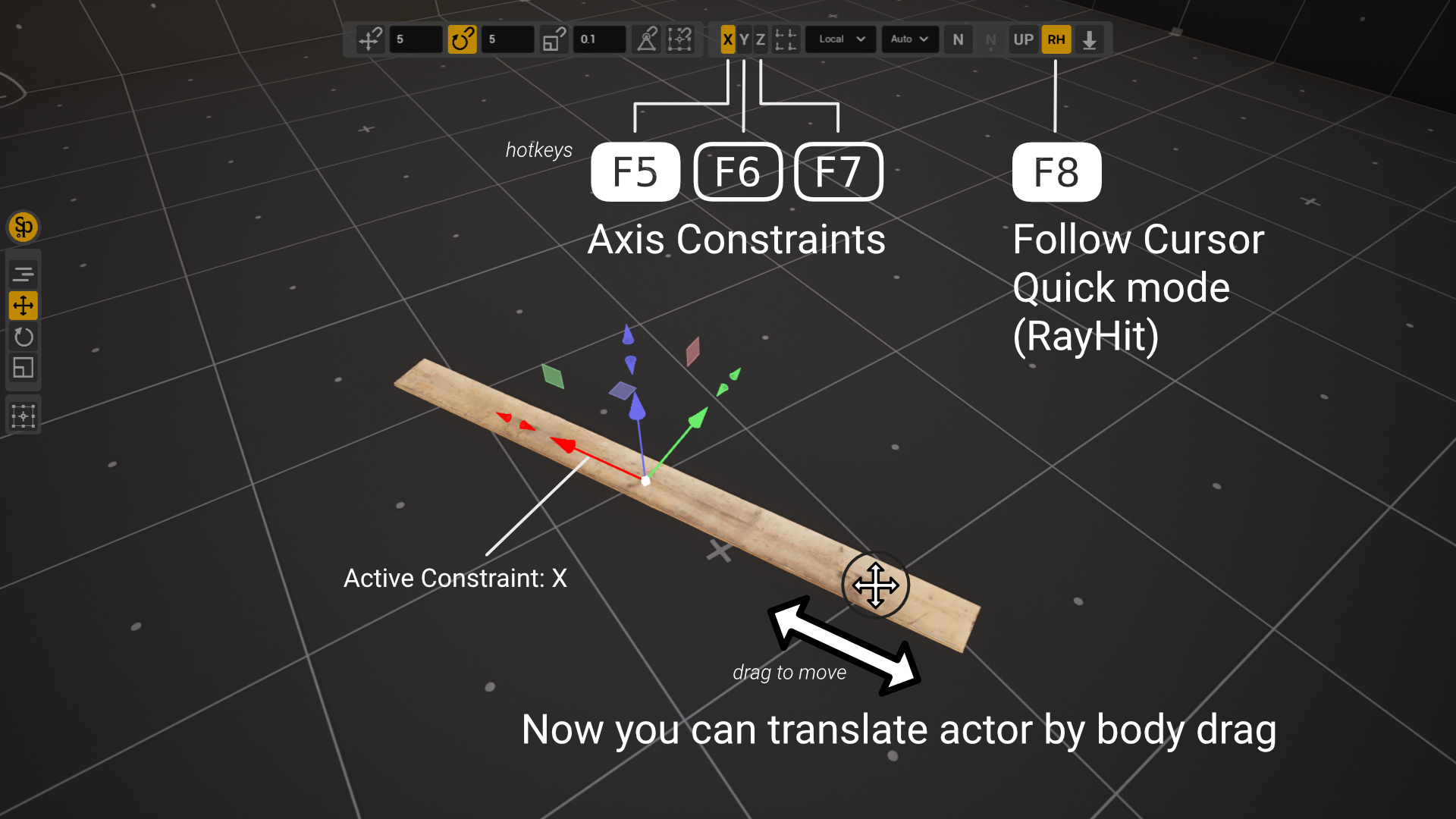
Constraints matter most for Direct Manipulation. Say you are editing a long object that does not fit in the viewport, and its gizmo is off screen. Grab the actor by its body and drag it — no need to move the camera — until the gizmo comes into view.
Use a constraint whenever an object must move in exactly one direction: raise a lamp without shifting it sideways, run a fence along a straight line without disturbing the other coordinates. The enabled axes tell SuperPlacer where the object may go; everything else stays as it is.
Buttons and hotkeys
Constraints live in the Constraints cluster of the Stripe UI:
| Button | What it does | Hotkey |
|---|---|---|
| X Constraint | the X axis | F5 |
| Y Constraint | the Y axis | F6 |
| Z Constraint | the Z axis | F7 |
| Ray Hit Mode | follow the surface under the cursor (see below) | F8 |
| Respect Hit Surface Up Vector | keep "up" along the surface (see below) | U |
The same cluster holds the Transform Each button, the coordinate system dropdown and the pivot position source. Two letters mark these dropdowns: R — the coordinate system sets the pivot's rotation, P — the source of its position. All hotkeys can be remapped in the SuperPlacer Hotkeys tab.
Axes follow the current coordinate system: world axes in World, the object's own axes in Local, and so on.
Constraining to an axis
Enable one axis and movement goes along it only. With Z Constraint on, for example, dragging an actor by its body raises and lowers it without sliding it sideways.
The gizmo draws the disabled axes dimmed, so you can always see which ones are on.
Constraining to a plane
Enable two axes and movement stays in their plane. X + Y make a horizontal plane: the actor slides along the floor at the same height. All three axes at once mean no constraint at all.
Constraints in the gizmos
Each gizmo — Translate (W), Rotate (E), Scale (R) — and Quick mode (Q) keeps its own set of enabled axes. The X, Y and Z buttons always show the set of the mode you are working in.
Grabbing a gizmo element sets the axes for you:
- an arrow, ring or handle of one axis — that axis only;
- a plane (Translate and Scale) — the two axes of that plane;
- the gizmo center (free move or uniform scale) — all three axes.
The buttons update right away. So once you have dragged the gizmo by its Z arrow, the next body drag goes along Z too.
Constraints and Direct Manipulation
With Direct Manipulation — dragging an actor by its body while a gizmo is active — the enabled axes decide what the drag does:
- Translate: one axis — move along it; two — move in their plane; three — move in the screen plane. With no axis enabled the body drag does not start: turn an axis on (F5, F6 or F7) or drag the gizmo by the element you need.
- Rotate: with exactly one axis enabled, the actor turns around it. To pick the axis, just touch that ring of the gizmo.
Constraints in Quick mode
In Quick mode the object you are working with — an actor, for example — follows the cursor. How it follows depends on the axes and on Ray Hit Mode:
| Axes | Ray Hit Mode | What happens |
|---|---|---|
| none (or all three) | on | the object travels freely over the surfaces under the cursor |
| none (or all three) | off | the object stays where it is |
| one or two | off | the object moves "in the air" along the enabled axes or in their plane |
| X and/or Y, not Z | on | the object moves along the enabled axes and takes its height from the surface under the cursor |
The last row is the way to plant a straight row of trees on uneven ground: the row keeps its line, and every tree sits on the terrain.
If you enter the Quick working phase with no axes (or all three) and Ray Hit Mode off, SuperPlacer turns Ray Hit Mode on for you — otherwise the object would not move at all. The exception is Ray Hit Mode you turned off yourself (F8 or the button): it stays off, and the object stays put until you enable an axis. This way you can move an object along the axes from where it stands — it does not jump to the surface under the cursor.
During the Quick working phase, enabling an axis turns Ray Hit Mode off whenever an axis lock remains (one or two axes): the object then moves in the air along the axes. To get the surface-following row from the last table row, turn Ray Hit Mode back on after setting the axes. Removing the last axis leaves Ray Hit Mode as it was, and the object travels freely over the surfaces again.
With no axes and Ray Hit Mode off the object cannot move, and SuperPlacer says so: a hint appears next to the cursor — Enable RayHit (F8) or a constraint axis (F5 / F6 / F7) to move the target — and the Ray Hit Mode, X, Y and Z buttons pulse softly.
To move the object by an exact distance, type a number right in the Quick working phase: the object stands that far from where the gesture began, in the direction you led it. With an axis enabled, the distance runs along the axis — see Touch&Type.
Ray Hit Mode and surfaces
Ray Hit Mode (F8) decides whether the object follows the surface under the cursor in Quick mode (see the table above). It is on by default.
Ray Hit Mode hits what is drawn: hidden objects (H, hidden layers) are passed straight through. What exactly it hits is set by Hit in the RayHit popup — right-click the Ray Hit Mode button. The same switch is in the RayHit section of the shared Constraints cluster popup (right-click the cluster):
- Geometry (default) — the visible geometry, even of a mesh without collision;
- Complex — complex collision;
- Simple — simple collision: boxes and convex hulls.
It is the same setting as SuperPlacer Settings > Aim Targets > Hit: the teleport cones, Look At, Scale to Target and Direct Manipulation aim by it as well. Change it in one place and the other follows.
Outside the Quick working phase, enabling the Z axis turns Ray Hit Mode off: you set the height now, not the surface. Turning Z off again does not bring Ray Hit Mode back.
Respect Hit Up
Respect Hit Surface Up Vector (U) keeps the object's "up" when a surface or a target turns it. It works together with N-Pivot, which aligns the object to the normal of the surface it is placed on:
- in a Look At gesture the object turns toward the target without tipping over — see Look At;
- when the pivot tilts to a surface normal, the object's X axis points up the slope.
What is remembered
The axis set, Ray Hit Mode and Respect Hit Up are kept separately for Quick and for each of the three gizmos for as long as the editor is open. Switch to another editor mode, such as Landscape, and back to SuperPlacer: everything is as you left it. After an editor restart the axes are off again and Ray Hit Mode is on. The Hit setting is saved between sessions.