The Stripe UI at the top of the viewport, the Column UI on the left, the settings popups, the gizmo menu, the tabs and the on-screen hints.
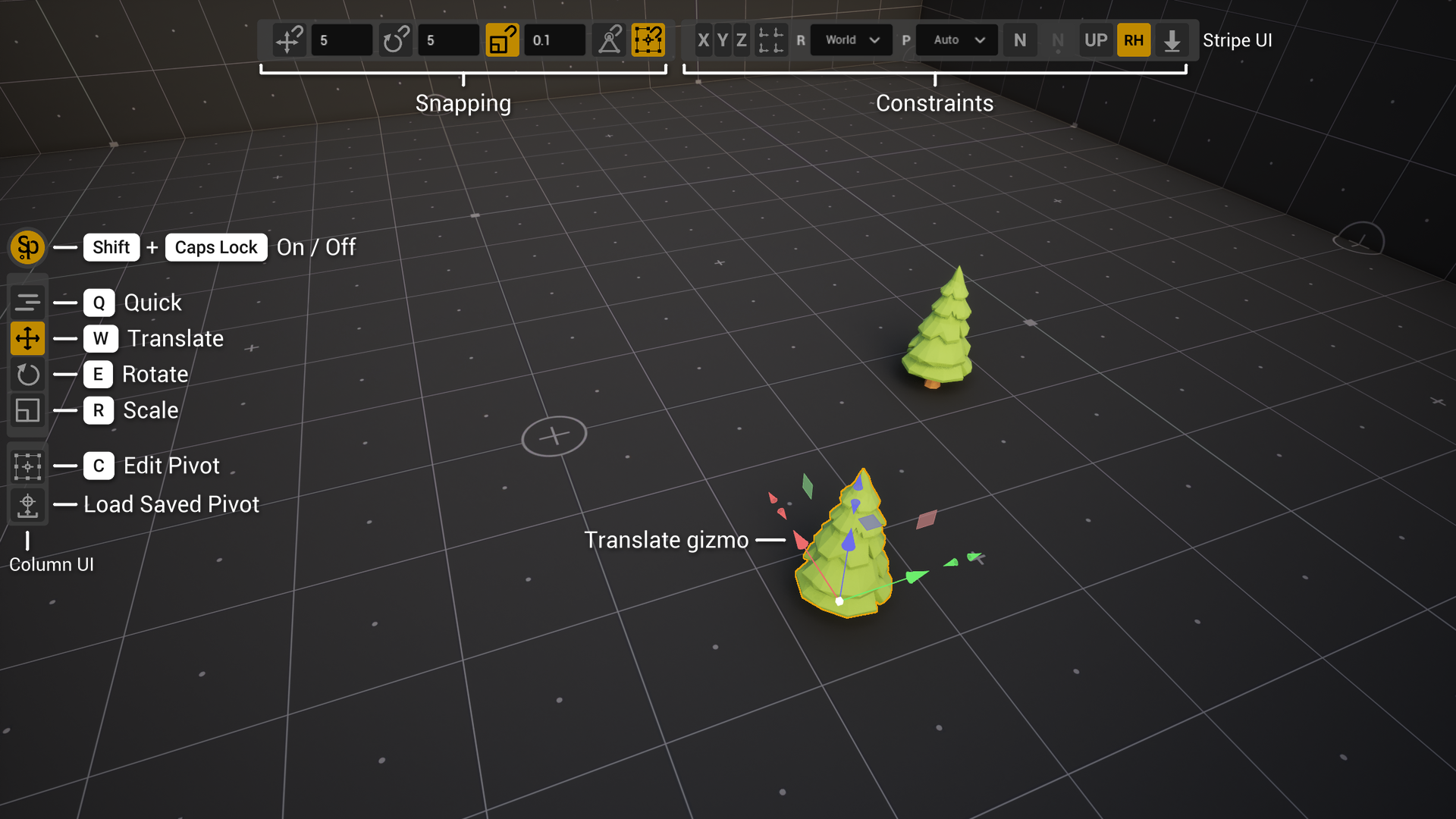
SuperPlacer shows almost everything right in the viewport, so you don't have to look away into the editor panels. The buttons are grouped: the Stripe UI — a row of buttons at the top — is about precision, the Column UI — a column of buttons on the left — is about the working modes.
Stripe UI
The Stripe UI along the top edge of the viewport consists of two groups.
Snapping — the snapping options:
- Translate Snapping, Rotate Snapping, Scale Snapping — snap moving, rotating and scaling to a step. Next to each button is a field with the step size;
- Vertex Snapping — the pivot sticks to mesh vertices;
- Bounds Snapping — the pivot sticks to the bounds anchors of the object under the cursor.
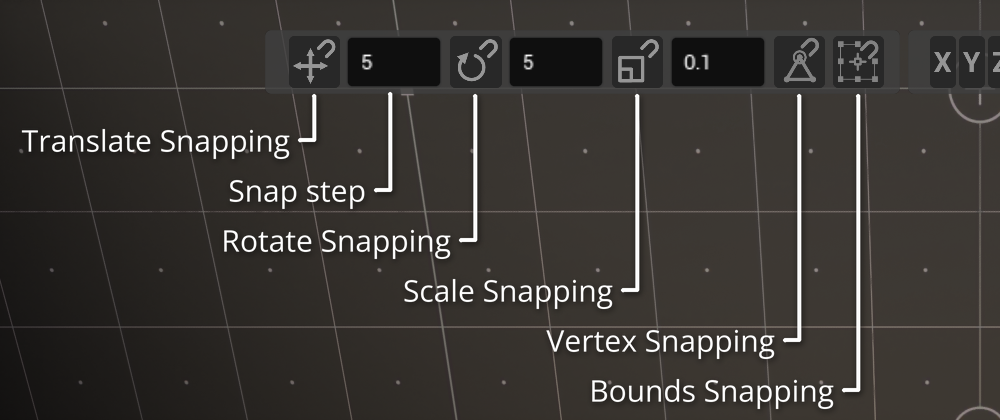
See Snapping and Vertex and Bounds Snapping.
Constraints — constraints and the coordinate system:
- X, Y, Z — the axis constraints;
- Transform Each — the gesture applies to every actor around its own pivot;
- the coordinate system dropdown: World, Local, Parent, Saved, Custom;
- the pivot position source dropdown: Auto, Origin, Custom, and in Transform and Edit Pivot also Locked and Saved;
- Surface Normal Tilt, Align Points To Surface Normal, Respect Hit Surface Up Vector, Ray Hit Mode — alignment to the surface and hitting it;
- Directional Drop — shoots the selected objects in the chosen direction (−Z, down, by default).
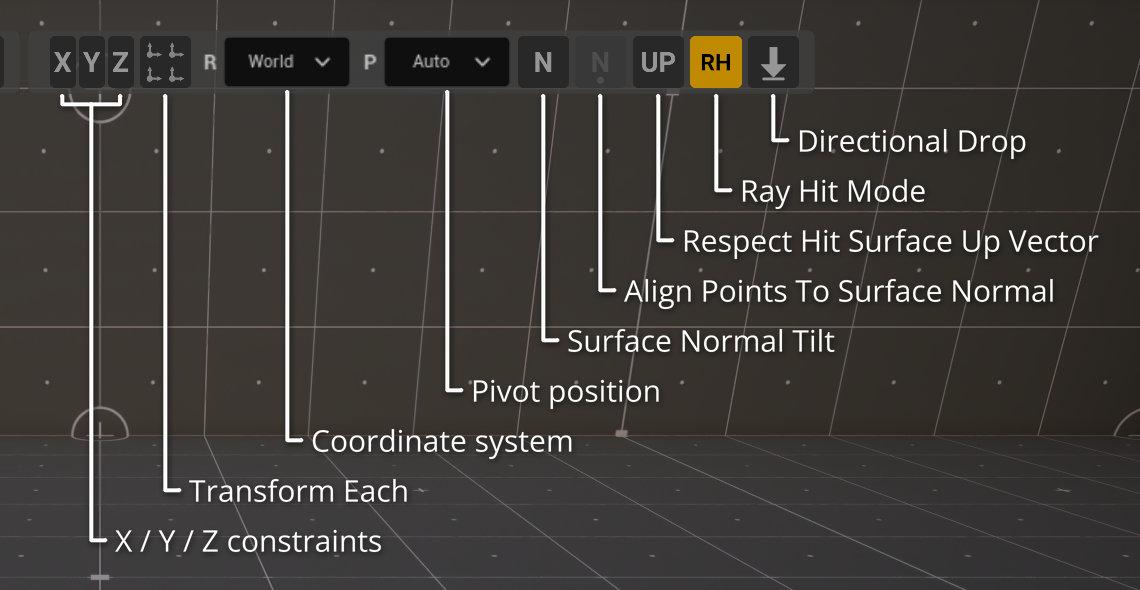
See Axis Constraints, Coordinate Systems, Transform Each and Directional Drop.
Column UI
From top to bottom:
- SuperPlacer On/Off — sleep and wake up, same as Shift+CapsLock;
- Quick Control Mode, Precision Control - Translate, Precision Control - Rotate and Precision Control - Scale — the Quick mode and the three gizmos, one button each, like the Q, W, E, R keys. The button of the active mode is highlighted;
- Edit Pivot — the mode in which only the pivot moves. While it is open and an actor is selected, the Save Pivot and Clear Saved Pivot buttons show under it. Below them is Load Saved Pivot, which shows outside Edit Pivot too (see Virtual Pivot).
The size and position of the Stripe UI and the Column UI are configurable — see Settings.
Popups and settings
Groups and buttons have popups with settings. A popup opens when you hover over its group or button. The Snapping, Constraints & RayHit and Quick Controls popups open only on a right click by default: these groups have many buttons, and an accidental hover would get in the way. A right click on a group always opens its popup.
Four buttons of the Constraints group also have popups of their own, each with just that button's settings: RayHit (the Ray Hit Mode button), N-Pivot (Surface Normal Tilt), N-Point (Align Points To Surface Normal) and Directional Drop. By default they too open only on a right click — on the button itself. A right click anywhere else on the group opens the shared Constraints & RayHit popup with all its sections. A setting shown in several popups is one and the same: change it in one, and the other shows the new value at once.
The popup header has an RMB checkbox: with it the popup opens only on a right click. The checkbox lasts until the editor restarts.
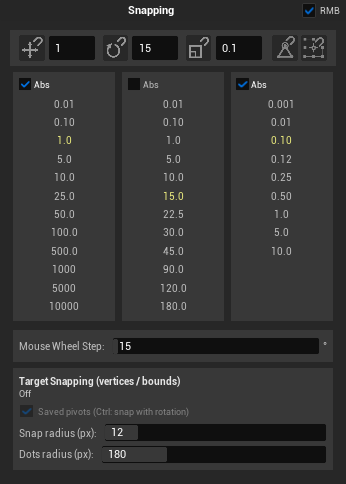
You can tear a popup off the Stripe UI: drag it by the header, and it becomes a separate window. Such a window has a close button and a corner to resize it. The positions of torn-off popups are saved and restored on the next start.
What is inside each popup is listed in Settings.
Gizmo menu
A right click on the gizmo opens the SuperPlacer menu:
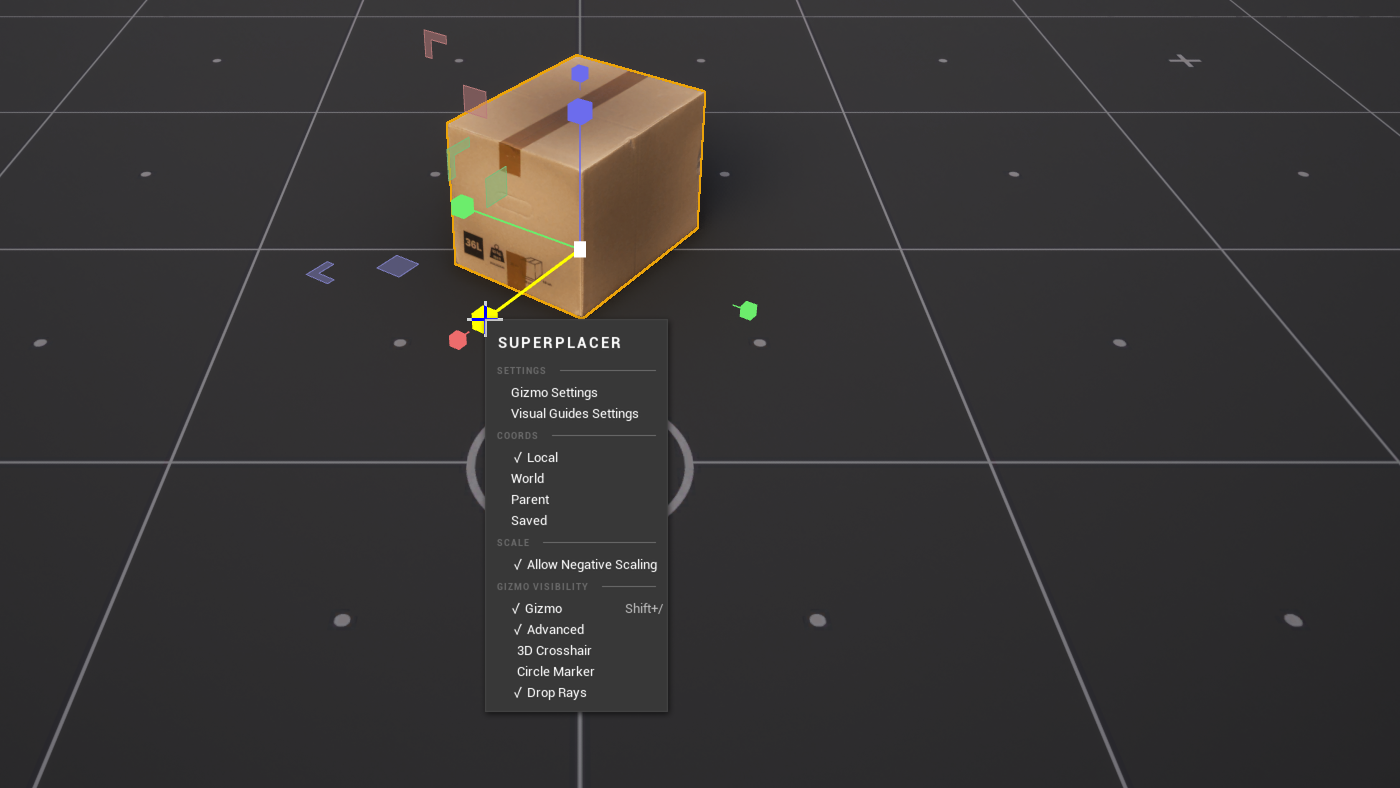
- Settings — Gizmo Settings and Visual Guides Settings, the look of the gizmo and of the guide lines;
- the gizmo coordinate system;
- Pivot Box — the orientation of the anchor box, in Edit Pivot only;
- Scale — Allow Negative Scaling, on the Scale gizmo only;
- Layout — Distribute, when two or more actors are selected;
- Gizmo Visibility — hide the gizmo (like Shift+/), turn on the Advanced view, the axes through the pivot 3D Crosshair, the Circle Marker ring and the Directional Drop rays Drop Rays.
See Gizmo Basics.
SuperPlacer menu and tabs
The editor's main menu has a SuperPlacer item. It contains:
- Settings — the SuperPlacer Settings window with the tool's settings. It doesn't open by itself — only from this item or with the SuperPlacer Settings button in the mode panel;
- Virtual Pivot — a tab with the pivot's position, rotation and scale. You can dock it into the editor layout, and it will open together with the editor;
- Hotkeys — the SuperPlacer Hotkeys tab, where you change the shortcuts. See Hotkeys;
- About — a window with the plugin version (Version) and a link to the SuperPlacer website.
The settings of the tool itself are in the SuperPlacer Settings window (SuperPlacer → Settings). See Settings.
On-screen hints
- Button tooltips. Hover over a button: the tooltip says what it does, with its shortcut in brackets. If you change the shortcut, the tooltip shows the new one right away.
- Sleep banner. When SuperPlacer falls asleep, a SuperPlacer Paused banner with the wake-up shortcut appears at the bottom of the viewport for three seconds. A click on it wakes the tool up.
- Messages at the gizmo. If an action isn't available right now, a short explanation appears next to the gizmo. For example, «Shift teleport is not available in Transform Each mode».