Move, rotate or scale several actors at once, each around its own pivot.
Group and Each
By default SuperPlacer transforms the selection as one piece. The pivot is the shared parent of all selected actors: turn it by 90°, and the whole group turns around it, like furniture together with the room.
Often you need something else: turn a hundred trees, each in its own place, or enlarge all the rocks without pushing them apart. That is what Transform Each is for. With it, the same gesture applies to each actor separately, around its own origin (Origin). The actors don't drift apart or swap places.
Turning Transform Each on
Press Shift+E or the Transform Each button in the Constraints cluster of the Stripe UI (it sits right after the X, Y, Z buttons). Press it again to turn the mode off.
While Directional Drop is on and Transform Each is off, the Transform Each button is white. Pressing it turns Transform Each on and Directional Drop off — the actors go back to where they started; turn Directional Drop on again, now together with Transform Each.
What changes when you turn it on:
- With several actors selected, the gizmo moves to the actor selected last instead of standing in the center of the selection. This shows which actor the axes and the numbers refer to.
- While you drag the gizmo, a Transform Each hint shows in the viewport — a reminder that the gesture works on each actor.
- If you turn the mode off without changing the selection, the pivot goes back to where it was before you turned it on, even if you placed it by hand. But if the actors have moved in the meantime — with a teleport cone, in Quick or with the gizmo — the pivot follows the usual selection rules: the average of the actors' pivots, or the locked anchor if there is one (see Where the pivot starts).
With one actor selected, Transform Each changes nothing: the actor's own pivot is the selection's pivot. If you moved the pivot aside, rotation and scale go around the pivot, as without Transform Each, and turning the mode on and off doesn't move the pivot.
Moving each
When you move, all actors get the same offset. The direction depends on the coordinate system:
- World and Custom — all actors move along the same gizmo axis. The result is the same as moving the group as usual.
- Local — each actor moves along its own axis. Drag the gizmo by X for 100 units, and an actor turned by 90° moves 100 units along its own X, that is in a different direction than its neighbour.
- Parent — each actor moves along the axes of its parent, and an actor without a parent — along its own, as in Local.
Rotating and scaling each in place
With Transform Each, rotation turns each actor around its Origin. The rotation axis is chosen as for moving: in World and Custom it's the same gizmo axis for all, in Local — each actor's own axis, in Parent — the axis of its parent.
Scale always runs along each actor's own axes, as in the standard editor. So while the Scale gizmo is active and Transform Each is on, the coordinate system dropdown in the Stripe UI is grey and shows Local, with the tooltip "Transform Each: Scale is always applied in Local coordinates".
Transform Each works in Quick mode too: the selection still follows the mouse as one piece, while rotating and scaling with the mouse wheel apply to each actor in place.
Each with Touch&Type
Type an exact value for every actor in the Touch&Type window. Double-click a ring of the Rotate gizmo or an arrow of the Translate gizmo, type the value and press Enter. Each actor turns around its own Origin, and a move in the Local coordinate system runs along each actor's own axes. The window shows the values of the actor selected last — the gizmo stands on it.
Resetting each in place
With Transform Each on and several actors selected, the pivot reset keys work on each actor too:
- Shift+R (Reset Pivot Rotation) aligns every actor: an actor attached to a parent takes its parent's rotation, an actor without a parent goes back to the world axes — rotation 0, 0, 0. When some of them are children, the hint Shift+R again = orient to world shows at the cursor for 2 seconds: pressing again within that time puts every actor on the world axes. The coordinate system doesn't matter;
- Ctrl+Shift+R (Reset Pivot Scale) gives every actor the scale 1, 1, 1.
Each actor is reset in place: its Origin — or, if you picked an anchor for the actor in Edit Pivot, that anchor — stays where it was. For example, tilted books with the anchor on their bottom face stand upright after Shift+R and don't sink into the shelf. After the reset the pivot goes, as usual with Transform Each, to the actor selected last, and its axes follow the coordinate system.
One Ctrl+Z undoes each press that changed something. With one actor and without Transform Each the keys work as usual — see Virtual Pivot; in Edit Pivot they behave their own way.
Each with the eyedropper
With Transform Each on, the eyedropper (I) writes the value it takes into each actor as a whole, instead of adding the difference:
- in Rotate each actor gets the same rotation as the donor;
- in Scale — the same scale;
- in Translate each actor moves to the donor's point, so all the selected actors land in one place.
This is handy to line up the rotation of all fence posts by one reference post, for example. Gathering at one point is useful too. Crates lie on the floor, each turned its own way, and you need them next to a column. Select the crates, turn on Transform Each, take a point by the column with the eyedropper in Translate — the crates gather there. Now drag them with the gizmo along one axis in the Local coordinate system: each crate moves out along its own axis and keeps its rotation. All that's left is to fine-tune them by hand.
The whole eyedropper action is undone with one Ctrl+Z step.
Each with Edit Pivot
Sometimes you need to rotate each actor, or put it on the floor, not from its Origin but from another point — the bottom face of a book, for example. For that, with Transform Each every actor can have an anchor of its own.
- Select several actors and turn on Transform Each (Shift+E).
- Enter Edit Pivot (C). Instead of one shared bounding box, each actor gets a box with anchors. The gizmo turns grey: in this mode you can't drag the pivot, only click anchors.
- Click an anchor on any of the actors. The anchor with the same number is picked on all actors — the bottom face center of each, for example. The gizmo moves to the anchor you clicked.
- To change the anchor of one actor only, click its anchor with Ctrl.
- To give an actor its own center back, pick its Origin anchor.
- Leave Edit Pivot (C).
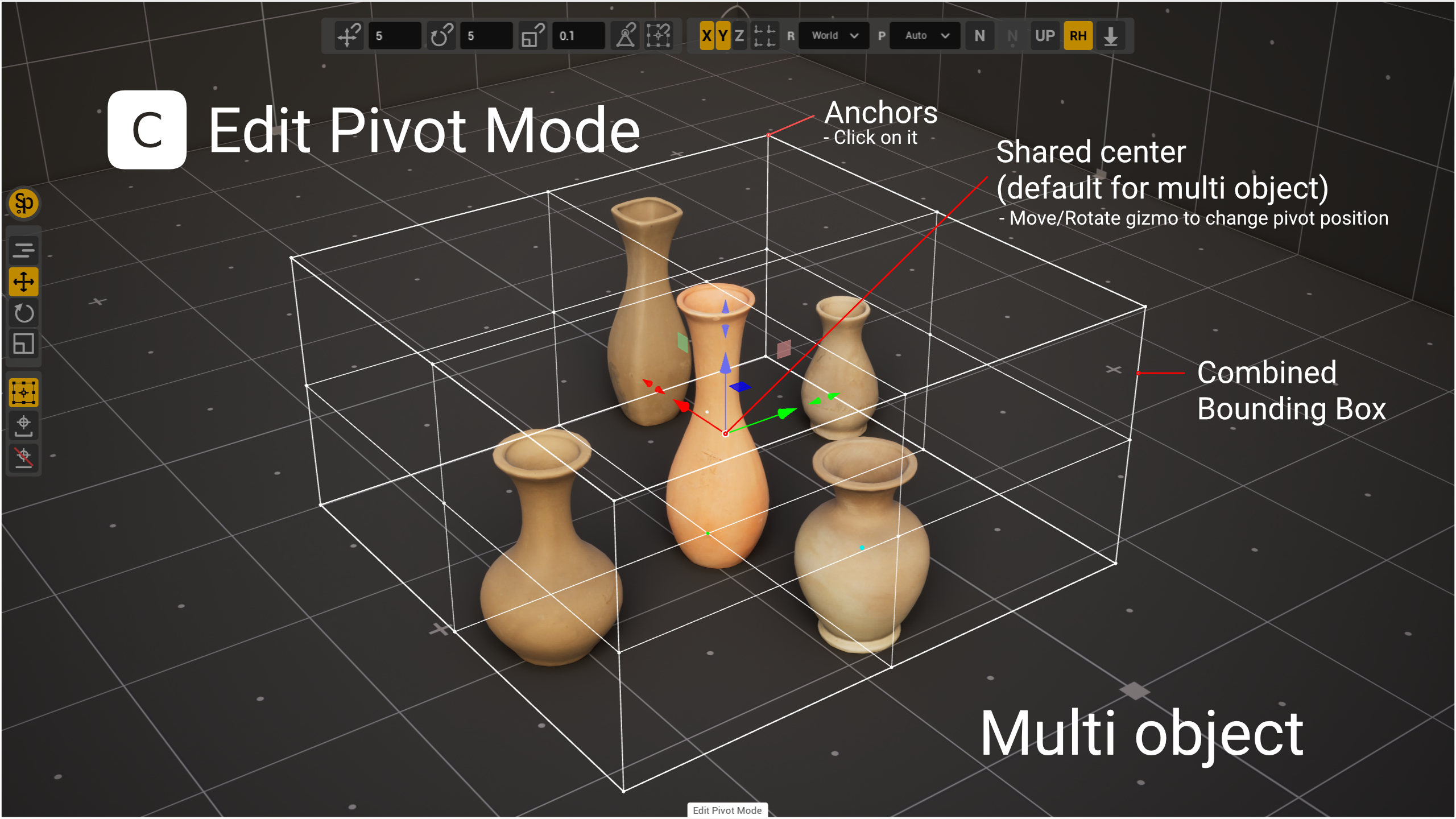
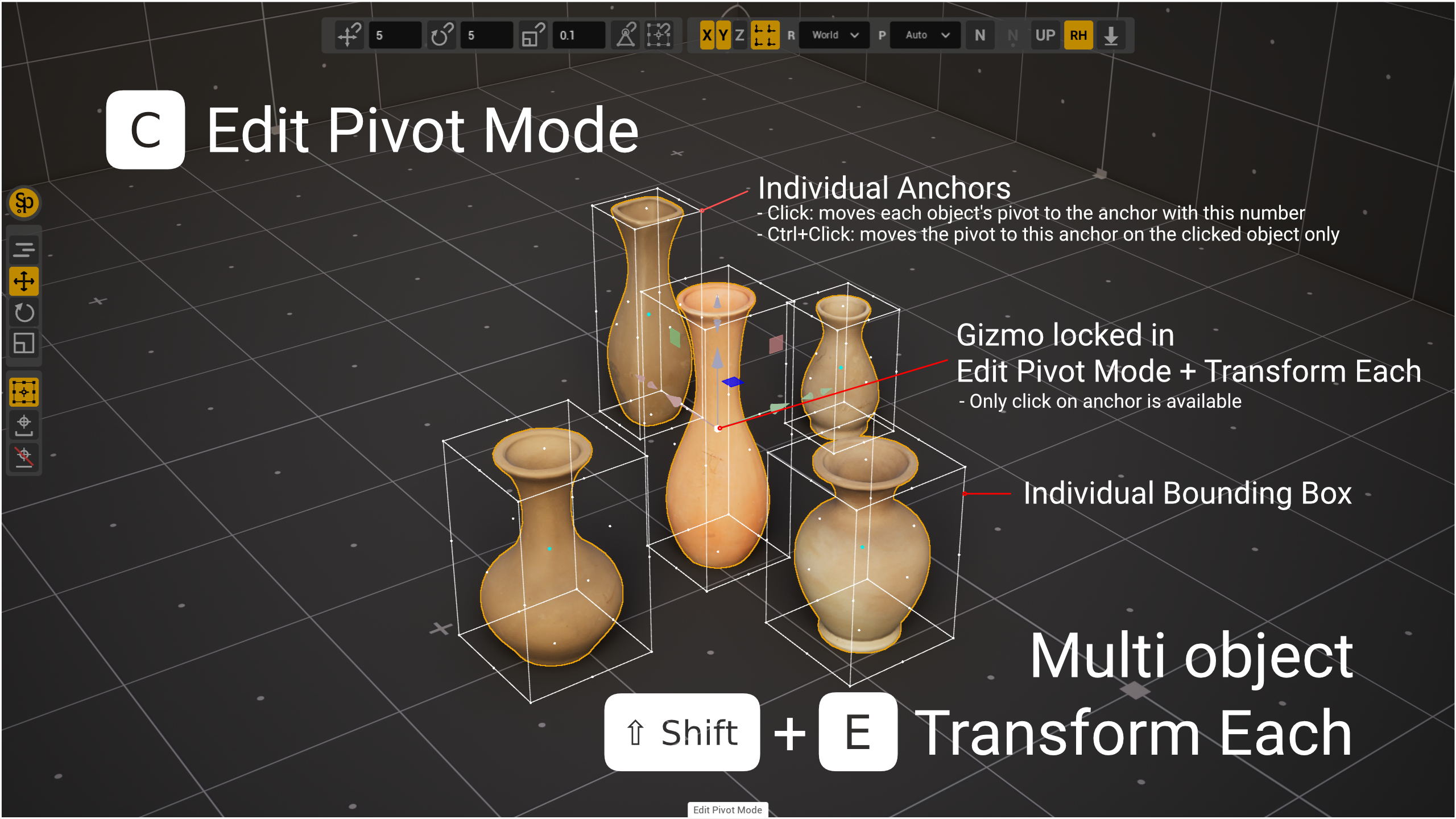
Now the gizmo rotates and scales around the chosen anchors. The tools that place each actor separately work around them too: the teleport cones, Look At and dropping to the floor with End. For example, books hang at different heights; pick the bottom anchor, then click the downward teleport cone — each book lands on the shelf by its bottom.
The anchors live until the selection changes. If you turn Transform Each off, the gizmo and the cones don't use them, while Directional Drop still drops each actor by its anchor. A double click on an anchor locks its number for the next selections — see Locked and saved pivot.
Gizmo tools with Transform Each
The tools that aim at the scene work on each actor separately with Transform Each (see Advanced mode on the Gizmo Basics page):
- The teleport cones cast a ray from each actor: in Local along its own axis, in World and Custom along the gizmo axis. An actor whose ray hits nothing stays in place. With N-Pivot (N) on, each actor also aligns to the normal of its own surface.
- Look At turns each actor to the target from its own position.
- End drops each actor straight down to the surface below it — see End with Transform Each.
Teleport with Shift (dragging a cone with Shift held) isn't available with Transform Each and several actors. The viewport shows the message "Shift teleport is not available in Transform Each mode".