SuperPlacer is an improved environment for working with actors in the level by hand — one that saves you a lot of time.
Why it exists
Unreal Engine is an outstanding engine: it has grown far beyond the games industry and has a huge number of features. Still, some of its areas haven't been updated for a long time — transforming actors by hand, for one.
In the age of widely available generative AI, the value of the work shifts towards the artistic placement of assets, lights and other objects in the level. There are many tools today that generate environment objects and whole worlds, procedurally or with AI. But to truly bring a project to life and give it character, there is always a layer an artist adds by hand: a detail put exactly where the eye wants it, an object moved from the less fortunate spot it was given automatically. Having generated a huge amount of content quickly, you then spend your time on character and fine-tuning, so that the project looks convincing to a human eye. The more content there is, the more work it takes to place it by hand. This is where the SuperPlacer transform tools come in: they go far beyond the basic toolset of Unreal Engine.
SuperPlacer is built around one idea: the tool should work as an extension of your hand. Fast when you move things by eye, and precise when you need a clean angle, the edge of a neighbouring object or an exact number. A great many tasks are done far more efficiently by hand. To hang a set of pictures on a wall in a good composition, for example, it is easier to do it yourself with SuperPlacer than to ask an LLM to hang them and then ask it again and again to redo it.
SuperPlacer doesn't replace procedural tools like PCG or Houdini. It is designed for the work an artist does by hand, where control over every object matters.
Main ideas
Virtual Pivot: a pivot you control
Every transform in SuperPlacer goes around the pivot — a temporary point that becomes the parent of the selected actors while you work. In an instant you can put it on a corner or a face of the bounds or on a mesh vertex, turn it to a surface or simply drag it like any other object. C will be one of the keys you press most: it switches what you are moving right now — the pivot or the object.
More in Virtual Pivot.
The familiar gizmos and Quick mode
There are the three well-known gizmos — Translate, Rotate and Scale (W, E, R), and in SuperPlacer they can do more. There is also Quick mode (Q), where the selection follows the mouse and there is no handle to grab. Quick is a gizmo of its own kind too, so the usual working keys W, E, R become Q, W, E, R. The extended features you will use all the time: Look At and Scale to Target.
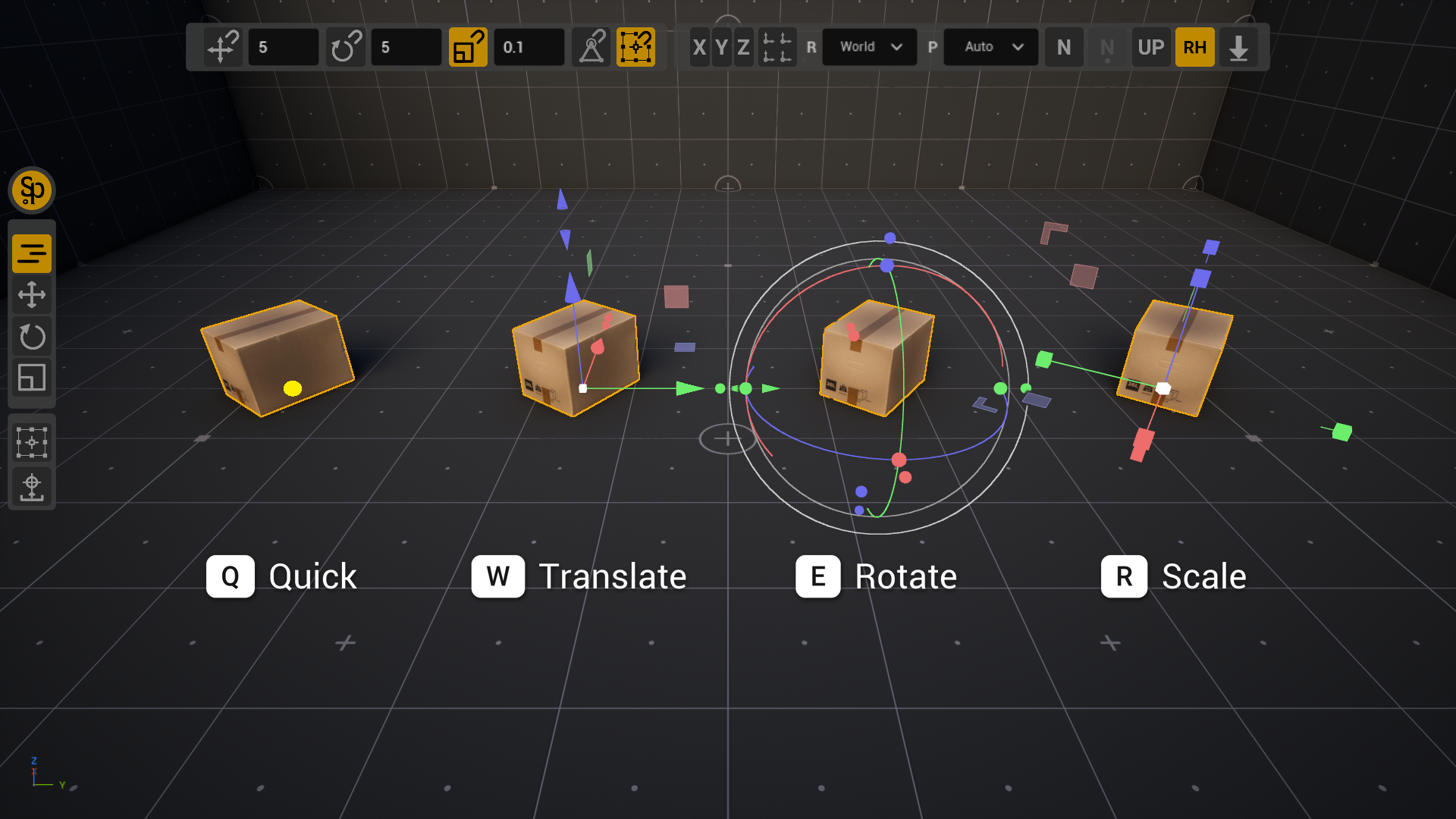
More in Gizmo Basics and Quick Mode.
A gesture means the same everywhere
A gesture you learn once works the same everywhere: with one actor and with a hundred, with spline points and inside the Modeling Mode tools.
- Alt+Drag on any gizmo leaves a copy and keeps dragging.
- The right mouse button in the middle of a gesture cancels it.
- Digits right after a gesture open the Touch&Type window for an exact value.
- Snapping and axis constraints apply to any gesture.
Precision without the Details panel
Touch&Type: after any gesture just type a number, or double-click a gizmo element. Grid, angle and scale snapping, snapping to vertices and bounds anchors, axis constraints and the World, Local, Parent, Saved and Custom coordinate systems give an exact result right in the viewport.
More in Touch&Type and Snapping.
Many actors as one, or each on its own
By default the selection moves as one piece around a common pivot. Transform Each (Shift+E) applies the same gesture to every actor around its own pivot: for example, turn several chairs, each around its own axis.
More in Transform Each.
What else
- Directional Drop — drop the selection onto surfaces along an axis, with a preview.
- Distribute — lay several actors out in a grid that takes their sizes into account.
- Rows of copies — Alt+Enter repeats the last copy, and the Copy checkbox in the Touch&Type window makes a whole row of copies at once.
- Saved pivots — a pivot saved on an actor works as a socket: another object docks to it with its position and rotation.
- Modeling Mode — the SuperPlacer gizmo inside the modeling tools, Push/Pull and Inset right from the gizmo, Edit Pivot on mesh elements.
- Light and decal handles — the size of a light, the Spot cones, the attenuation radius and the decal size right in the viewport.
How it lives with the editor
SuperPlacer works on top of the standard Unreal Engine selection mode: you select actors as usual and transform them with the SuperPlacer tools. The standard editor actions — selection, camera navigation, undo with Ctrl+Z — work as always.
If you need the plain editor for a while, press Shift+CapsLock — this is sleep (Master Sleep). While asleep, SuperPlacer passes all input to the editor; pressing it again wakes it up. The button on the editor's main toolbar does the same.
More in First Steps.
How to work with SuperPlacer
SuperPlacer is a transform toolkit for the Unreal Editor: gizmos, pivots, snapping and precise input for actors on the level.
- What is SuperPlacerSuperPlacer is an improved environment for working with actors in the level by hand — one that saves you a lot of time.
- InstallationHow to install SuperPlacer from Fab, enable it in a project, and which engine plugins it needs.
- First StepsYour first minutes with SuperPlacer: where it appears in the editor, how to move your first actor and how to put the tool to sleep for a moment.
- Interface OverviewThe Stripe UI at the top of the viewport, the Column UI on the left, the settings popups, the gizmo menu, the tabs and the on-screen hints.
- Gizmo BasicsThe Translate, Rotate and Scale gizmos of SuperPlacer: what they are made of, how to switch between them, what they show during a gesture and how they aim at the scene — teleport cones, Look At and Scale to Target.
- Quick ModeIn Quick mode the selection moves, turns and scales as you move the mouse — there is no handle to grab.
- Direct ManipulationDrag a selected actor by its body instead of the gizmo — handy when the gizmo is far away or off-screen.
- Virtual PivotEvery SuperPlacer gesture works around the Virtual Pivot — a temporary point that becomes the parent of the selection while you work. In Edit Pivot you can move it without moving the actors themselves.
- Grid, Angle and Scale SnappingTranslate snapping to a grid step, rotate snapping to an angle step, scale snapping to a scale step. The steps, the Relative and Abs modes, the hotkeys.
- Vertex and Bounds SnappingThe pivot sticks to mesh vertices and to their bounds anchors — while you drag the gizmo, in Quick mode, in Edit Pivot and with the gizmo's aims.
- Axis ConstraintsLock a gesture to one axis or a plane — with the gizmos, when dragging an actor by its body, and in Quick mode — and what Ray Hit Mode and Respect Hit Up do.
- Coordinate SystemsThe World, Local, Parent, Saved and Custom coordinate systems, how to pick one, why each gizmo keeps its own, and why Custom is shared.
- Touch&TypeType exact values right after a gesture, or double-click a gizmo element and enter a number — with operators, expressions and copies.
- Transform EachMove, rotate or scale several actors at once, each around its own pivot.
- Copies: Alt+Drag and Alt+EnterCopy the selection with an Alt gizmo gesture, repeat the last copy with Alt+Enter, lay out rows of copies from the Touch&Type window and stamp copies in Quick mode.
- Directional DropDrop the selected actors onto surfaces along a chosen gizmo axis, look at the result, then accept or cancel it.
- DistributeLay several actors out in a grid that respects their sizes — for example right after dropping assets from the Content Browser. The box handles change the rows and the gaps, OK keeps the layout, Cancel puts everything back.
- Drop to the Surface and EyedropperOne-key actions: End drops the pivot together with the selection to the surface below it, and the eyedropper I takes a position, rotation or scale from another actor.
- Light and Decal HandlesResize Rect lights, their barn doors, Spot cones, the attenuation radius and decals right in the viewport — with handles on the selected actor.
- Spline PointsEdit the points of regular spline components with the SuperPlacer gizmo — with snapping, Touch&Type, Alt+Drag copies and tangent handles.
- Modeling ModeThe SuperPlacer gizmo, snapping and Touch&Type inside the Modeling Mode tools — plus Push/Pull and Inset right from the gizmo.
- HotkeysThe default SuperPlacer shortcuts, what they do and where to change them.
- SettingsWhere SuperPlacer keeps its settings, what is in the SuperPlacer Settings window and in the popups, and how to get the defaults back.
- GlossaryThe words this documentation uses, in one place.
- TroubleshootingWhat to do when SuperPlacer does not respond, conflicts with another tool or behaves unexpectedly.