The Translate, Rotate and Scale gizmos of SuperPlacer and their extras that aim at the scene: teleport cones, Look At and Scale to Target.
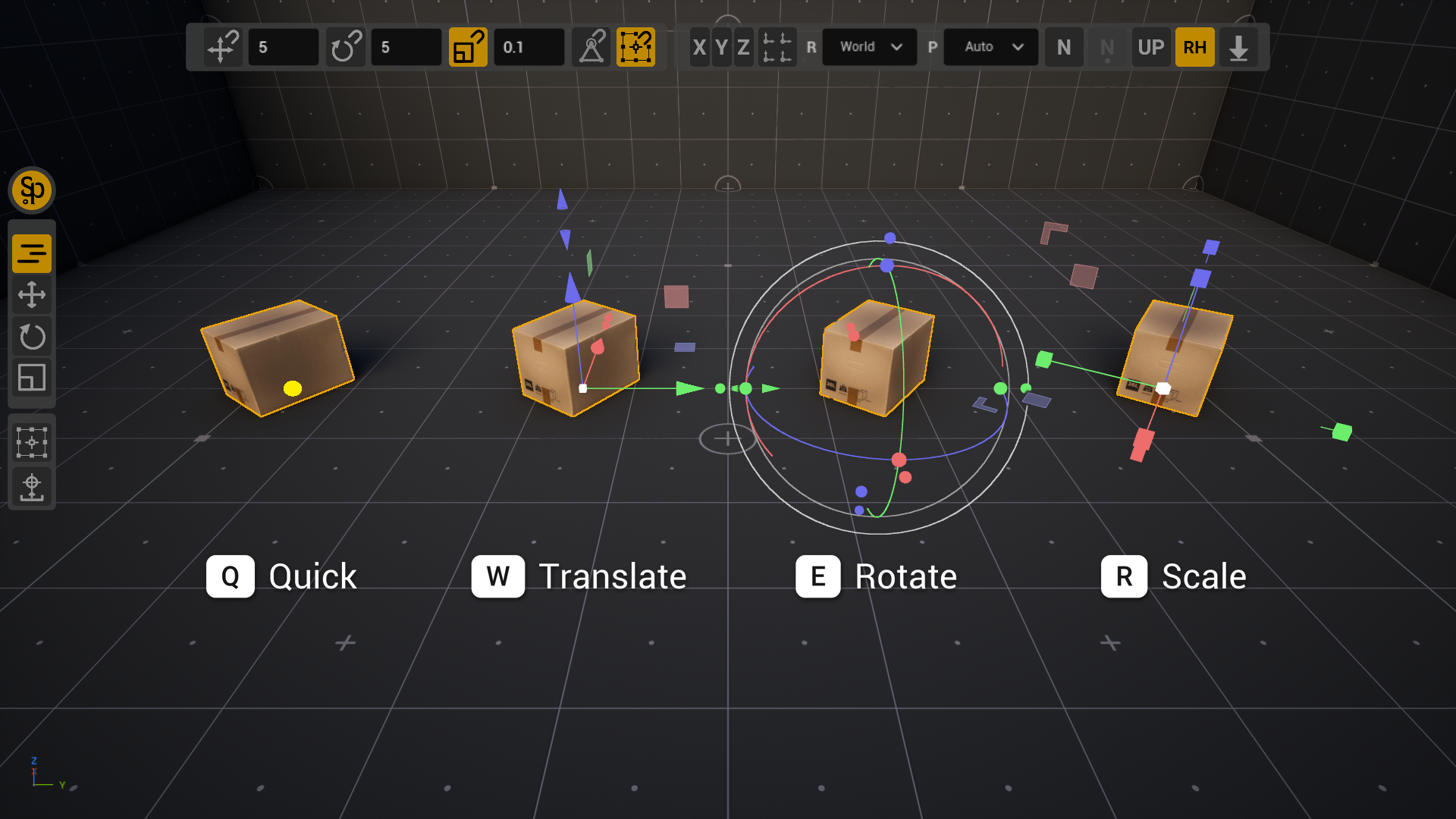
While the tool is awake, the SuperPlacer gizmos replace the editor's standard ones. They sit at the pivot and move the selection around it. They have more elements than the engine gizmo, but at heart they work the same way: hover an element and drag.
The yellow dot of Quick mode is a gizmo too: a click on it starts the gesture, and the selection follows the mouse. The mouse wheel turns it, Ctrl+Shift with the wheel scales it, a left click places the selection. Everything else is in Quick Mode.
Switching gizmos
| Key | What it turns on |
|---|---|
| W | the Translate gizmo — move |
| E | the Rotate gizmo — rotate |
| R | the Scale gizmo — scale |
| Q | Quick mode — the selection follows the mouse, the gizmo is hidden |
While SuperPlacer is awake, these keys belong to it: they don't turn on the engine's standard gizmos.
You can do the same with the buttons of the Column UI: Quick Control Mode turns on Quick, the Precision Control - Translate, - Rotate and - Scale buttons turn on the gizmo you need.
Translate
- An arrow moves the selection along one axis.
- A square between two axes moves it in the plane of those axes. The colour of the square is the colour of the axis perpendicular to the plane.
- The white square in the centre moves it in the screen plane.
- Teleport cones beyond the arrow tips (Advanced mode): a click drops the selection along the axis onto the first surface. More in Teleport cones.
Infinite drag. Hold Shift while you drag an arrow, a square or the centre. The cursor disappears, the camera follows the selection, and the edge of the screen no longer limits the gesture. Release Shift and the drag follows the cursor again. Infinite drag doesn't work with Transform Each on.
Rotate
- A coloured ring rotates around its axis. Only the half of the ring that faces the camera is drawn, so the rings don't cover one another.
- The grey outer ring rotates around the view direction.
- The marker where two rings cross rotates around both axes at once — freely, like a trackball.
- Look At spheres beyond the rings (Advanced mode) turn an axis of the selection to the point under the cursor. More in Look At.
Hold Shift while you drag a ring, and the angle goes in 45° steps.
How a ring turns mouse movement into an angle is set by Ring Mode in Gizmo Settings:
- Slider (the default) — the angle grows as the mouse moves across the screen;
- Polar — the angle is the angle of the cursor around the pivot on the screen: the farther from the pivot you move the mouse, the finer the rotation.
Scale
- An axis cube scales along one axis.
- A square between two axes scales two axes proportionally. With Shift held, each axis on its own.
- An L-shaped corner always scales two axes independently.
- The white cube in the centre scales uniformly along all axes.
- Scale to Target cubes on thin stems (Advanced mode) stretch a face of the selection to the first surface in the way of the ray. More in Scale to Target.
SuperPlacer scales the actors themselves — the instances of assets in the level — not their geometry. Every actor has its own transform: a position, a rotation and a scale along its own axes. The mesh doesn't change, and a transform can't hold a skew — this is what shapes how a group scales.
Several actors scale as one whole. When you drag along one or two axes, the selection stretches along the gizmo's axes: the actors spread out along them, and each actor stretches in the same direction. When an actor's axes match the gizmo's axes, the result is exact. A rotated actor can't be stretched that way without skewing it, so it takes the closest shape without a skew: for a long object — a beam, a board — the ends land exactly where the stretch takes them and the tilt changes; for an object without a clear long axis the scale is approximate.
Scale can go below zero and mirror the object. To make it hard to pass zero by accident, the gesture stops near zero for a moment. If you don't need negative scale, clear Allow Negative Scaling in the right-click menu of the Scale gizmo. It is on by default.
Advanced mode
The gizmos have two looks. In Advanced mode — on by default — they carry extra elements: teleport cones on Translate, Look At spheres on Rotate, Scale to Target cubes and L-shaped corners on Scale. The corners are described in Scale, the rest below.
If the extra elements get in the way, turn off Advanced in the Gizmo Visibility section of the gizmo's right-click menu: the simple look stays — arrows, squares, rings and cubes.
The Advanced elements of the gizmo (the cones, the spheres and the cubes) aim at the scene, and they all work the same way: hover one, and SuperPlacer shows where the ray lands; click, and the selection goes there. The rays miss the actors that this gesture moves and the objects that the viewport doesn't draw.
Teleport cones
Beyond the tip of every Translate arrow there is a pair of small cones. The first one points back, towards the pivot, the second one forward. A cone casts a ray from the pivot along its axis, in its own direction.
It works like Directional Drop: a ray along the axis, and the selection lands at the hit point. A cone drops once and at once; Directional Drop drops every actor with a preview and a confirmation.
- Hover a cone, and you see a preview.
- Click. When you release the button, the selection moves so that the pivot lands at the hit point.
If the ray hits nothing, nothing happens. The whole teleport is one step in the undo history.
- The pivot lands at the hit point. A box with its pivot in the centre sinks halfway into the floor; to stand it on the floor, put the pivot at the bottom anchor in Edit Pivot.
- With the normal tilt on (N), the selection leans to the surface after the teleport and keeps its turn around the vertical.
- Several selected actors move as a group, following the shared pivot. With Transform Each on, every actor casts its own ray from its own point and lands on its own surface: for example, pictures at different distances from a wall each land on the wall in front of them.
- In Edit Pivot a cone moves the pivot only. The selected actors stay where they are and can serve as the target.
Aiming with Shift. Press a cone and, holding the button, hold Shift. Now move the cursor over the scene: the point under the cursor is projected onto the cone's axis. You see a preview — a crosshair where the pivot goes. Release the button, and the selection moves. With Transform Each and several actors aiming with Shift is not available: you see the message «Shift teleport is not available in Transform Each mode».
Look At
Beyond the rings of the Rotate gizmo there are six small spheres — one for every axis direction: +X, −X, +Y, −Y, +Z, −Z. A sphere turns the selection around the pivot so that its axis looks at the point under the cursor.
- Grab the sphere of the axis you need.
- Move the cursor over the scene. The selection turns along, the sphere's axis looks at the surface under the cursor.
- Release the button.
- The Local coordinate system. A sphere aims an axis of the gizmo. In Local it is the object's own axis — the beam of a spotlight, for example, looks at the target. In World the gizmo's axis is the world one, and the own axis of a turned object may miss the target.
- With Shift the turn stays in the horizontal plane: the target point is taken at the height of the pivot. Handy to turn an object to a target without tilting it.
- U (Toggle Up Mode) keeps the world vertical during the turn: the object turns to the target but doesn't fall to its side. Without it the turn is the shortest one and can tilt the object.
- With Transform Each on, every actor turns to the point by itself, around its own pivot. The gizmo hides for the gesture, and a line runs to the target from every actor.
- In Edit Pivot Look At turns the pivot only.
Scale to Target
Every axis of the Scale gizmo can carry a small cube on a thin stem — at the face of the selection's bounds that is far from the pivot. The cube scales the selection along its axis so that this face lands exactly on the first surface in the way of the ray.
- Hover a cube. A white line runs from the pivot along the axis to the obstacle, a wireframe shows the bounds after the click, and a plate at the cursor shows the scale along this axis it will set.
- Click. When you release the button, the face lands exactly at the hit point.
- The pivot is the fixed point. If the pivot is on a face, the opposite side grows. If it is in the centre, the object grows both ways.
- It works both ways: if the obstacle is closer than the current face, the object shrinks.
- Scale snapping doesn't apply here — otherwise the face would miss the obstacle.
- A mirrored object (with negative scale) stays mirrored.
- Aiming with Shift, as with the cones: press a cube, hold Shift and aim at any point of the scene. Its projection onto the axis sets the new place of the face. A target behind the pivot won't do — nothing happens on release.
The cubes appear when:
- one actor is selected, or several actors that scale as one group; with Transform Each — for one actor only;
- the axis of the gizmo matches the axis of the object: if the gizmo is turned relative to the object, the cube of that axis hides — otherwise the face could not land on the point honestly;
- you are not in Edit Pivot.
A partition blockout: put the pivot at a corner of a cube in Edit Pivot, then click the X axis cube — the wall stretches exactly to the opposite wall.
Aiming at a vertex or a bounds anchor
With vertex or bounds snapping on, the aims catch a vertex or a bounds anchor next to the cursor:
- Look At turns the axis exactly to that point;
- aiming a cone with Shift puts the pivot in the plane of the point along the axis;
- aiming a Scale to Target cube with Shift puts the face in the plane of the point — a beam, for example, reaches exactly the face of the beam next to it.
A plain click on a cone or a cube works without the snapping, by the ray only. To turn the aim snapping off for a moment, hold Ctrl. With Bounds Snapping and the Saved pivots checkbox on, Ctrl instead keeps only the saved pivots as targets, and Ctrl+Shift turns the snapping off — just as in a drag, see Bypassing a snap.
Aiming at a spline point
When you edit spline points, the aims see the other points of the same spline. The point under the cursor is highlighted with a green circle and becomes the target: the cone's Shift aim puts the selected points in its plane along the axis, Look At turns the axis exactly at it. The points being moved are never a target. The points work without vertex snapping and with Ctrl too — as for the eyedropper.
Cancel with the right mouse button
Press the right button while you hold the left one, and the gesture is cancelled. The pivot and the selection go back to where they were before the gesture, and nothing is added to the undo history.
- Press the right button while you hold a teleport cone or a Scale to Target cube, and the click doesn't happen — nothing changes.
- Press the right button during Look At, and the turn goes back to where it started.
Guide lines
While something is selected, SuperPlacer draws guide lines at the pivot: they show where the axes point and what the selection will run into.
- The axes through the pivot. Long red, green and blue lines run through the pivot along the X, Y and Z axes: along the world axes in the World coordinate system, along the pivot's axes in the others. An axis turned on by a constraint (F5, F6, F7) is bright, the others are dimmed.
- Axis hits. During a gesture — a gizmo drag, a Quick gesture, work in the Touch&Type window — SuperPlacer looks for the first surface along each of the six half-axes and puts a small cross on it; the line beyond the cross is paler. This shows what the selection will run into if you move it along that axis. After the gesture the crosses stay while the pivot stays where it is.
- The distance line. While you drag the Translate gizmo, a white line runs from the start point to the pivot, and a plate at the cursor shows the distance covered.
- The surface normal. With the normal tilt on (N), a short white line sticks out of the pivot during a Quick gesture — the normal of the surface under it.
- Circle Marker — a horizontal circle around the pivot, off by default. It is white while Ray Hit Mode is on and orange while it is off.
How to turn them on and off:
- Ctrl+/ (Toggle Visual Guide Lines) hides and shows the axes, the hit crosses, the normal and the circle at once.
- In the gizmo's right-click menu, the Gizmo Visibility section: 3D Crosshair — the axes through the pivot, Circle Marker — the circle.
- The detailed settings are in the gizmo menu → Visual Guides Settings, the Guides tab: Show Crosshair (the axes through the pivot, the same as 3D Crosshair) and Show Axis Hits (the hit crosses) in the Crosshair (Global Coordinates) section, the length and thickness of the axes — Length (km) and Thickness Idle in the Main Guidelines (XYZ Axes) section, the circle — the Circle Marker section, the axis colours — the Axis Colors & Transparency section.
- The Show Distance Line and Show Distance Widget checkboxes in Gizmo Settings turn off the distance line and its plate.
Hiding the gizmo
- Shift+/ (Toggle Precision Gizmo) hides the gizmo and shows it again. A hidden gizmo isn't drawn and doesn't react to clicks, while direct manipulation — dragging an actor by its body — still works. The setting is kept between sessions.
- Ctrl+/ (Toggle Visual Guide Lines) hides the guide lines: the axes through the pivot, the hit crosses and the circle.
The right-click menu
Right-click any element of the gizmo. A right click on the body of an actor opens the editor's usual context menu.
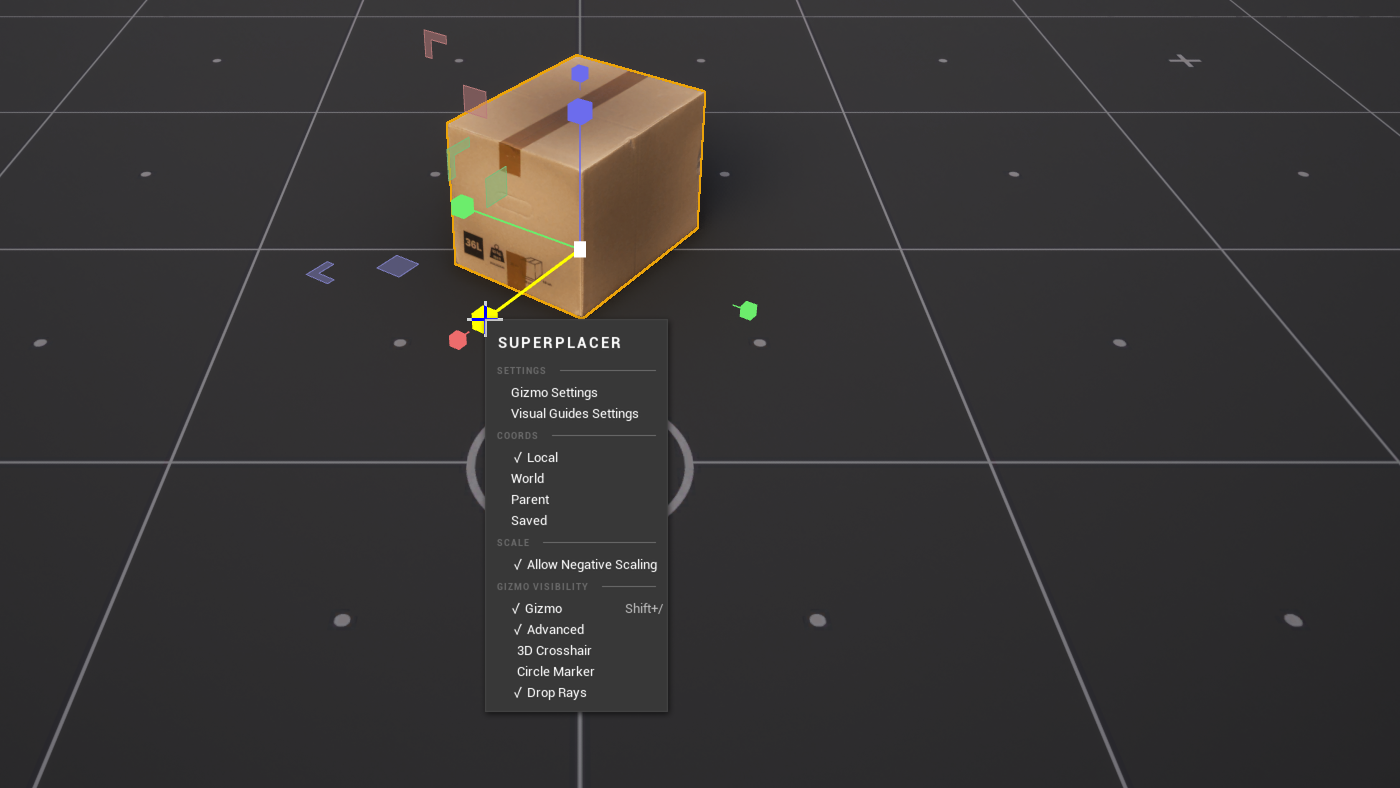
| Section | Items |
|---|---|
| Settings | Gizmo Settings — size, line thickness, axis colours, Ring Mode; Visual Guides Settings — the guide line settings |
| Coords | World, Local, Parent, Saved — the coordinate system of the gizmo, more in Coordinate Systems; Saved — the axes of the pivot saved on the actor, see Saving the pivot on an actor |
| Pivot Box | Local, World — the orientation of the anchor box, in Edit Pivot only; the same as Shift+C |
| Scale | Allow Negative Scaling — on the Scale gizmo only |
| Layout | Distribute — lay the selected actors out in a grid, see Distribute; the section shows in Transform when two or more actors are selected |
| Gizmo Visibility | Gizmo — hide the gizmo, the same as Shift+/ (to bring it back, press Shift+/ again); Advanced — the extra elements; 3D Crosshair — the long axes through the pivot; Circle Marker — the horizontal circle around the pivot (see Guide lines); Drop Rays — the rays of Directional Drop, the same as the Show Drop Rays checkbox |
The current coordinate system, the current box orientation and the items that are on carry a check mark.