Drop the selected actors onto surfaces along a chosen gizmo axis, look at the result, then accept it with Accept Directional Drop — or cancel it with Cancel.
Dropping along an axis
Directional Drop drops each selected actor onto the surface in its path. Rocks on uneven landscape, chairs on the floors of different storeys, crates on the steps of a staircase — each actor finds its own surface.
To turn Directional Drop on and off, press Shift+End or the Directional Drop button in the constraints cluster of the Stripe UI.
How it works:
- Each actor drops by its own pivot: its ray starts from that point, that point lands where the ray meets a surface, and the whole actor follows.
- One actor drops by the pivot point — where the gizmo stands. Move the pivot to the bottom of a crate in Edit Pivot, and the crate lands on its bottom even if its origin is in the middle.
- Several actors drop each by its own origin — or by its own anchor, if one is set (see Dropping each actor on its own below).
- The ray runs along one of the six pivot axes, −Z by default. While the pivot is not rotated (the World coordinate system), −Z drops the actors straight down. If the pivot is rotated, the drop follows its tilted axis. Pick another axis, and you can press the actors against a wall or a ceiling.
- The selected actors and everything attached to them do not stop the rays: an actor never lands on itself or on another selected actor. Hidden objects do not stop the rays either.
- If a ray hits nothing, the actor stays where it is.
In the Local coordinate system the pivot is rotated like the actor (with several actors — like the last selected one), and the drop follows its axis. To set the direction without rotating the actors themselves, rotate the pivot in Edit Pivot.
Ray settings
The ray is set up in the popup of the Directional Drop button — right-click the button. The same settings are in the Directional Drop section of the shared Constraints & RayHit popup (right-click the constraints cluster):
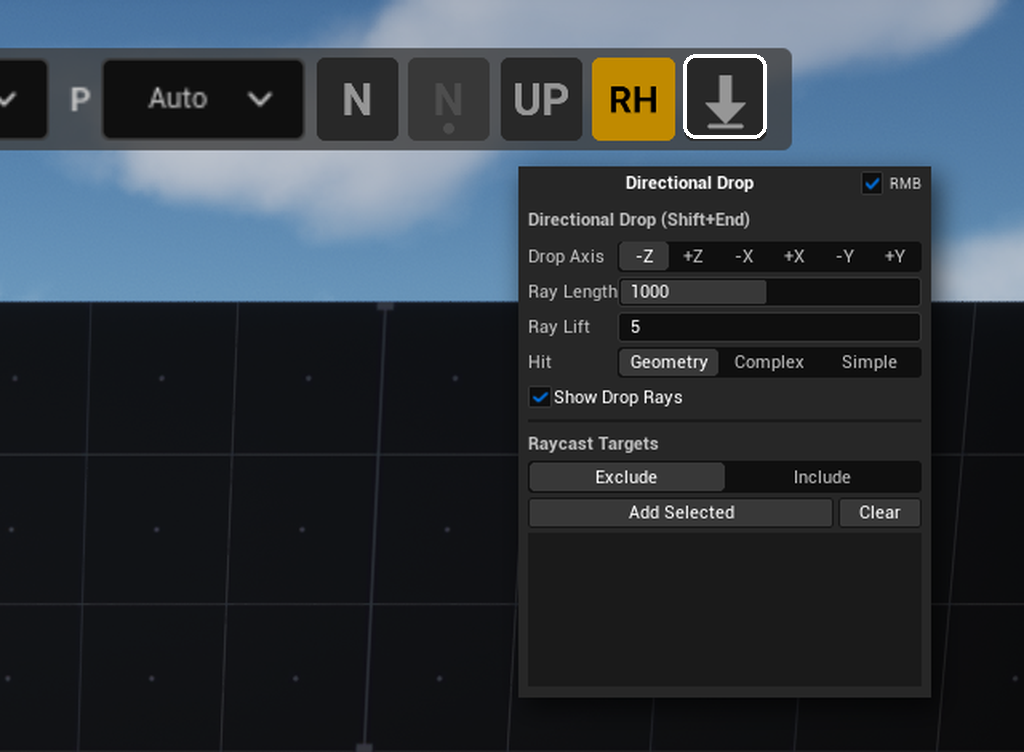
| Field | What it sets | Default |
|---|---|---|
| Drop Axis | the pivot axis the actors are dropped along: −Z, +Z, −X, +X, −Y, +Y | −Z |
| Ray Length | how far the ray reaches, in meters | 1000 m |
| Ray Lift | how many centimeters behind the point the actor drops by (the pivot, the origin or the anchor) the ray starts — against the drop | 5 cm |
| Hit | what the rays hit: Geometry — what is drawn (the most exact and the most expensive), Complex — complex collision, Simple — simple collision (the fastest). Applies to Directional Drop, N-Point and N-Pivot; the same switch is in the N-Pivot popup. The shared Hit switch of the RayHit popup does not affect them | the shared Hit switch of the RayHit popup at the time of the update |
| Show Drop Rays | show the rays in the viewport while Directional Drop is on: a thin white line from the ray start to the hit point, a dot at the ray start, a larger dot at the point the actor drops by (the pivot, the origin or the anchor) and a dot at the hit point. A ray that hits nothing shows the dots at the ray start and at the point the actor drops by and a short stroke along the drop. No rays while you are in Edit Pivot. The same switch is the Drop Rays item of the gizmo's right-click menu (the Gizmo Visibility section) | on |
The tooltip of the Directional Drop button shows the chosen axis.
The lift lets an actor that has sunk slightly into a surface still land on it: if the point it drops by is less than Ray Lift below the surface, the ray finds it. But if another surface — a table top, a shelf — lies behind the actor closer than Ray Lift, the actor may land on it. That is why the default lift is small.
Preview while you work
Directional Drop does not change the actors for good right away. While it is on, SuperPlacer remembers where each actor started and shows where it will land:
- move, rotate and scale the selection with the gizmo, in Quick or with Touch&Type — the actors drop again after every change;
- change the ray or alignment settings in the popups — the drop is recalculated at once;
- switch the coordinate system (World / Local / Parent / Saved / Custom) — the drop axis turns with the pivot, and the drop is recalculated at once, not on the next gizmo move;
- turn Directional Drop off (Shift+End or its button) — the actors go back to where they stood before the drop.
Repeated gestures do not add up: every drop is cast from the starting position, not from where the actor already landed.
The drop axis is a pivot axis, so you can aim the drop with the gizmo itself. Turn the selection with the Rotate gizmo: the −Z axis turns with the pivot, and the preview shows the new direction at once — the actors now fly sideways, for example onto a hillside.
Edit Pivot while Directional Drop is on. Enter Edit Pivot (C), and the drop pauses: the actors go back to where they started, the Directional Drop button stays pressed, and the Accept Directional Drop and Cancel buttons and the rays hide for a while. The anchor box and everything you do in Edit Pivot work from the starting position of the actors — just as without Directional Drop. Leave Edit Pivot, and the actors drop again, now from the new pivot and along its new axis. After that, Cancel or popping out the Directional Drop button puts the actors back where they started, and Accept commits the new drop as one undo step. Shift+End works in Edit Pivot too, just like the button: Directional Drop turned on there drops the actors when you leave, turned off there leaves them where they started.
Accepting and cancelling
While Directional Drop is on and there is something to accept, two buttons show at the bottom center of the viewport.
Accept Directional Drop commits the drop:
- the actors stay where they landed, and that becomes their new starting position;
- Directional Drop turns off, its button in the Stripe UI pops out, the buttons at the bottom disappear;
- one Directional Drop step appears in the undo history: Ctrl+Z puts the actors back where they were before the drop, Ctrl+Y drops them again.
Cancel discards the drop: the actors go back to where they stood, and Directional Drop turns off — just as if you popped out its button in the Stripe UI.
Changing or clearing the selection while Directional Drop is on works like Accept: the drop is committed and the mode turns off. The new selection starts without Directional Drop — turn it on again if you need it.
Ctrl+Z while Directional Drop is on. The undo history keeps where the actors started, not where they landed: Ctrl+Z undoes your edit (a move, a rotation, Touch&Type, a rotation reset and so on), Directional Drop stays on, and the drop is recalculated from the restored position; Ctrl+Y brings the edit back and drops the actors again. Turning Directional Drop on or off and recalculating the drop add no undo steps — only Accept does. If an undo changes the selection, Directional Drop turns off and the actors stay where the history put them.
Aligning to the surface
By default the actors keep their rotation when they drop. To also tilt each actor to the surface it landed on, turn on N-Point — Shift+N or the Align Points To Surface Normal button next to the Directional Drop button.
- Each actor tilts to the normal of its own hit point: one of its axes is laid onto the normal with the shortest rotation, and the rest of its rotation is kept where possible.
- Which axis goes onto the normal is set by the Axis row in the popup of the N-Point button (right-click it). Auto (the default) is the axis opposite to the drop: dropping along −Z lays the actor's +Z onto the normal, dropping along +X into a wall lays its −X. You can pick any axis by hand.
- The N-Point button is available only while Directional Drop is on.
- The Align Power field in the same popup sets the strength:
1— fully along the normal,0— the original rotation, values in between blend the two. A twin of the N-Point switch is in the shared Constraints & RayHit popup, in the N-Point — Align To Surface Normal section.
N-Pivot (N, the Surface Normal Tilt button) is a different mechanism: it tilts the pivot itself — the point where the gizmo stands — to the normal, and the selected actors turn with it like its children. It does not work together with Directional Drop: turning Directional Drop on turns N-Pivot off, and while Directional Drop is on, the N-Pivot button is grey and N does nothing.
The Respect Original Virtual Pivot Rotation checkbox belongs to N-Pivot, not to Directional Drop: it sits in the popup of the N-Pivot button (right-click Surface Normal Tilt) and in the N-Pivot section of the shared popup. With the checkbox off (the default), the object's Z axis goes onto the surface normal by the shortest turn: on the surface it already lies on, it does not turn. With the checkbox on, the turn is counted from the surface the object lay on when the move began: it lies on the new surface the way it lay on the old one. More in Tilting the pivot to the surface normal.
What the rays hit: Raycast Targets
At the bottom of the popups of the Directional Drop and N-Pivot buttons and of the shared Constraints & RayHit popup there is a Raycast Targets section — lists of actors the rays hit or skip. The lists are the same in all these popups. They affect only Directional Drop (with N-Point) and N-Pivot; the other SuperPlacer rays ignore them.
- Exclude — the rays hit by the usual rules and skip the listed actors. For example, add a rug, and the chairs land on the floor under it.
- Include — the rays hit only the listed actors and skip everything else on the way. For example, add the landscape, and the rocks drop to the ground through tree crowns and canopies. While the Include list is empty, the rays hit as usual.
To fill a list, select actors in the level and press Add Selected — they go to the list of the current mode. The trash button removes a row, Clear empties the whole list. Each mode has its own list; switching modes does not erase them.
The lists belong to the level and are kept between editor sessions: open the level again, and the same lists are there. SuperPlacer stores nothing on the level itself.
Dropping each actor on its own
Directional Drop always works per actor: each has its own ray, its own hit point and, with N-Point, its own tilt. That is why it pairs well with Transform Each: rotate the actors with the gizmo, each in place — they stay on the surface.
Several actors drop each by its own anchor. By default that is the actor's origin. Another anchor is set in Edit Pivot with Transform Each on — for example, the center of the bottom face on each one (see Each with Edit Pivot), and then every actor lands on its bottom. The anchors stay with the actors after Transform Each is turned off — Directional Drop still uses them. With N-Point an actor tilts around its anchor: the anchor stays at the hit point.
While Directional Drop is on and Transform Each is off, the Transform Each button in the Stripe UI is white: the drop already goes from each actor's own pivot. Press it, and Transform Each turns on while Directional Drop turns off (the actors go back to where they started). Turn Directional Drop on again — now together with Transform Each.
To drop each actor straight down once, without the preview and the confirmation, turn on Transform Each and press End — see End with Transform Each.
Teleport cones
The Translate gizmo has a similar tool — the teleport cones. The mechanism is the same: a ray along an axis, and the selection lands at the hit point. The difference is that a cone drops once and right away, with no interactive adjustment and no confirmation buttons, and the axis is the cone you click.
Past the end of each gizmo arrow there is a pair of small cones. The first faces back, toward the pivot, the second faces forward. A cone casts a ray from the pivot along its axis, in its own direction.
- Hover a cone. The other gizmo parts hide, a white line runs from the pivot to the first surface on the ray, and a crosshair marks the surface.
- Click. When you release the button, the selection moves so that the pivot lands at the hit point.
If the ray hits nothing, nothing happens. The whole teleport is one undo step.
- Example. A crate hangs in the air, its pivot at the center of its bottom. A click on the −Z cone puts the crate on the floor.
- With the normal tilt on (N), the selection tilts to the surface after the teleport, keeping its rotation around the vertical.
- With Transform Each on, each actor casts its own ray from its own point and lands on its own surface — like Directional Drop, only at once.
- In Edit Pivot a cone moves only the pivot. The selected actors stay in place and can serve as the target.
Aiming with Shift. Press a cone and, holding the button, hold Shift. Now move the cursor over the scene: the point under the cursor is projected onto the cone's axis. A white line and a crosshair on the axis show where the pivot will go, and a grey line with a yellow cross runs from the point under the cursor to the axis. Release the button — the selection moves. With Transform Each and several actors, Shift aiming is not available: the message "Shift teleport is not available in Transform Each mode" appears.
More on the cones and the other gizmo tools — in Advanced mode of Gizmo Basics.