Translate snapping to a grid step, rotate snapping to an angle step, scale snapping to a scale step. The steps, the Relative and Abs modes, the hotkeys.
Snapping matters when you need a round number: move a wall exactly 100 centimetres, turn a door by 90°, make a box one and a half times bigger. SuperPlacer snapping works in the gizmos, in Quick mode and with direct manipulation. It doesn't depend on the snapping buttons of the Unreal Engine viewport toolbar: SuperPlacer has its own switches and its own steps.
Snapping to the vertices and bounds anchors of neighbouring objects is described separately — in Vertex and Bounds Snapping.
Where snapping is turned on
The Stripe UI has a Snapping cluster. It holds three buttons, each with a step field next to it:
| Button | What it snaps | Key |
|---|---|---|
| Translate Snapping | moves | Shift+T |
| Rotate Snapping | rotations | A |
| Scale Snapping | scaling | Shift+S |
A click on the icon turns the snapping on or off. The field to the right of the icon sets the step. The keys work like the buttons, and you can reassign them in the SuperPlacer Hotkeys tab.
Next to them in the same cluster are Vertex Snapping and Bounds Snapping — snapping to vertices and bounds anchors, which has its own page.
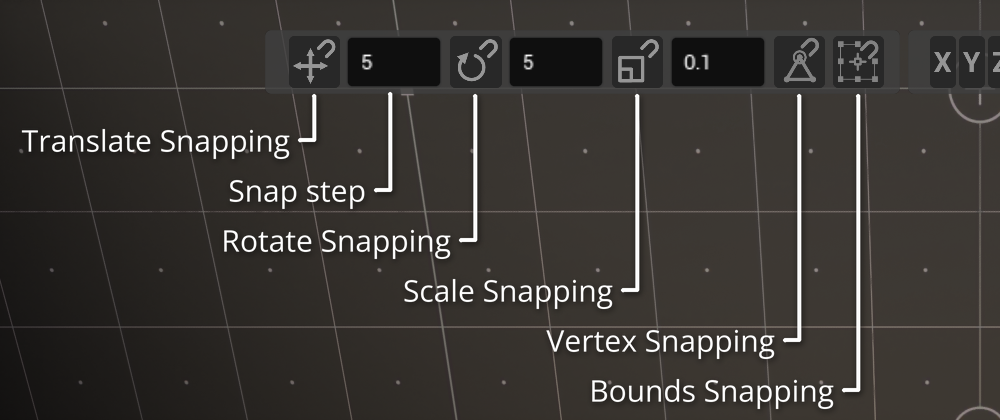
All snapping is off by default. The initial steps: translate — 100, rotate — 5°, scale — 0.1. The switches and the steps are kept between editor sessions.
Translate snapping
With Translate Snapping on, moves go in steps. This applies to the arrows and the planes of the Translate gizmo, dragging an actor by its body and the pivot following the cursor in Quick mode.
How the steps are counted depends on the mode (see Relative and Abs below):
- Relative (the default) — the offset from the point where the gesture started is a multiple of the step. An actor at X = 37 with a step of 100 goes to 137, 237 and so on.
- Abs — the position lands on the nodes of the world grid with this step: 100, 200, 300.
Rotate snapping
With Rotate Snapping on, rotation with the rings of the Rotate gizmo goes in angle steps. The arc and the angle plate in the viewport show the rounded value.
- Relative — the rotation angle from the start of the gesture is a multiple of the step.
- Abs — the object's final angles (Pitch, Yaw, Roll) are multiples of the step.
Hold Shift while you drag a ring: the rotation goes in 45° steps whether rotate snapping is on or not and whatever its step is.
The Look At gesture doesn't use rotate snapping: the object must look exactly at the target, and a rounded angle would point it past it. More about Look At in Look At.
Scale snapping
With Scale Snapping on, the scale of the Scale gizmo changes in scale steps. Only the axes you drag are rounded: when you stretch along X, the Y and Z values stay as they were.
- Relative — the scale change from the start of the gesture is a multiple of the step: 1.37 → 1.47 → 1.57 with a step of 0.1.
- Abs — the scale value itself is a multiple of the step: 1.4, 1.5, 1.6.
Relative and Abs
Each of the three snappings has its own mode. It's set by the Abs checkbox above the step column in the Snapping popup (the tooltip: «Absolute: snap to world grid / Relative (default): snap increment from drag start»).
- The checkbox is clear — Relative: the steps are counted from where the gesture started. Handy when an object already stands «off the grid» and you need to move it by a round amount.
- The checkbox is set — Abs: the result lands on round values of the world grid, the angle or the scale. Handy for lining an object up with the grid.
Snapping settings
The Snapping popup opens with a right click on the Snapping cluster. The RMB checkbox in the popup header decides whether the popup opens only with the right button or already when you hover over the cluster. By default — only with the right button.
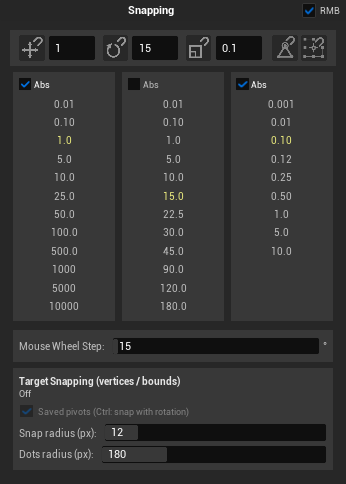
In the popup:
- The row of buttons at the top repeats the cluster's buttons: Translate, Rotate and Scale with their step fields, Vertex and Bounds.
- The Translate, Rotate and Scale columns — ready-made steps. A click on a value sets the step and turns the snapping on right away. The current step is highlighted green if the snapping is on, and yellow if it's off.
| Column | Ready-made steps |
|---|---|
| Translate | 0.01 · 0.1 · 1 · 5 · 10 · 25 · 50 · 100 · 500 · 1000 · 5000 · 10000 |
| Rotate | 0.01 · 0.1 · 1 · 5 · 10 · 15 · 22.5 · 30 · 45 · 90 · 120 · 180 |
| Scale | 0.001 · 0.01 · 0.1 · 0.125 · 0.25 · 0.5 · 1 · 5 · 10 |
- The Abs checkbox above each column — the mode of that snapping.
- Mouse Wheel Step — how many degrees one mouse wheel click turns in Quick mode (15° by default). It's a separate setting: rotate snapping doesn't affect the wheel.
- Target Snapping (vertices / bounds) — the settings of vertex and anchor snapping, see Vertex and Bounds Snapping.
You can also type any step by hand — in the field next to the cluster button.
How snapping combines with other tools
- Vertex snapping wins over the grid. If a vertex or a bounds anchor snapped in the gesture, the position comes from it, and the grid step isn't applied in that frame.
- Touch&Type numbers aren't rounded. A value typed in the Touch&Type window is applied exactly as you typed it.
- Axis constraints decide what the gesture moves along, and snapping — in what steps. More in Axis Constraints.
Bypassing snapping for a moment
There is no key that turns grid, angle or scale snapping off for the duration of a gesture. To move freely, turn the snapping off with its key (Shift+T, A or Shift+S) and turn it back on when you need it.
Ctrl during a gesture turns off only vertex and bounds snapping for a moment. With Bounds Snapping and the Saved pivots checkbox on, Ctrl switches to socket mode instead, and Ctrl+Shift turns the snapping off — see Bypassing a snap.