The World, Local, Parent, Saved and Custom coordinate systems, how to pick one, why each gizmo keeps its own, and why Custom is shared.
The coordinate system decides where the axes of the gizmo and of the constraints point. The same job is often easier in different axes: a light is easier to move along the world axes and to turn around its own. SuperPlacer offers five systems and remembers the choice separately for each gizmo.
The anchor box of Edit Pivot does not depend on the coordinate system: it has its own Local / World switch (Shift+C), see Box orientation.
Where to pick the system
- The dropdown in the Constraints cluster of the Stripe UI. The letter R in front of it says that the coordinate system sets the pivot's rotation. Tooltip: "Coordinate System (World / Local / Parent / Saved / Custom)". The neighbouring dropdown marked P is the position source of the pivot.
- The gizmo menu: right-click the gizmo, Coords section — World, Local, Parent and Saved.
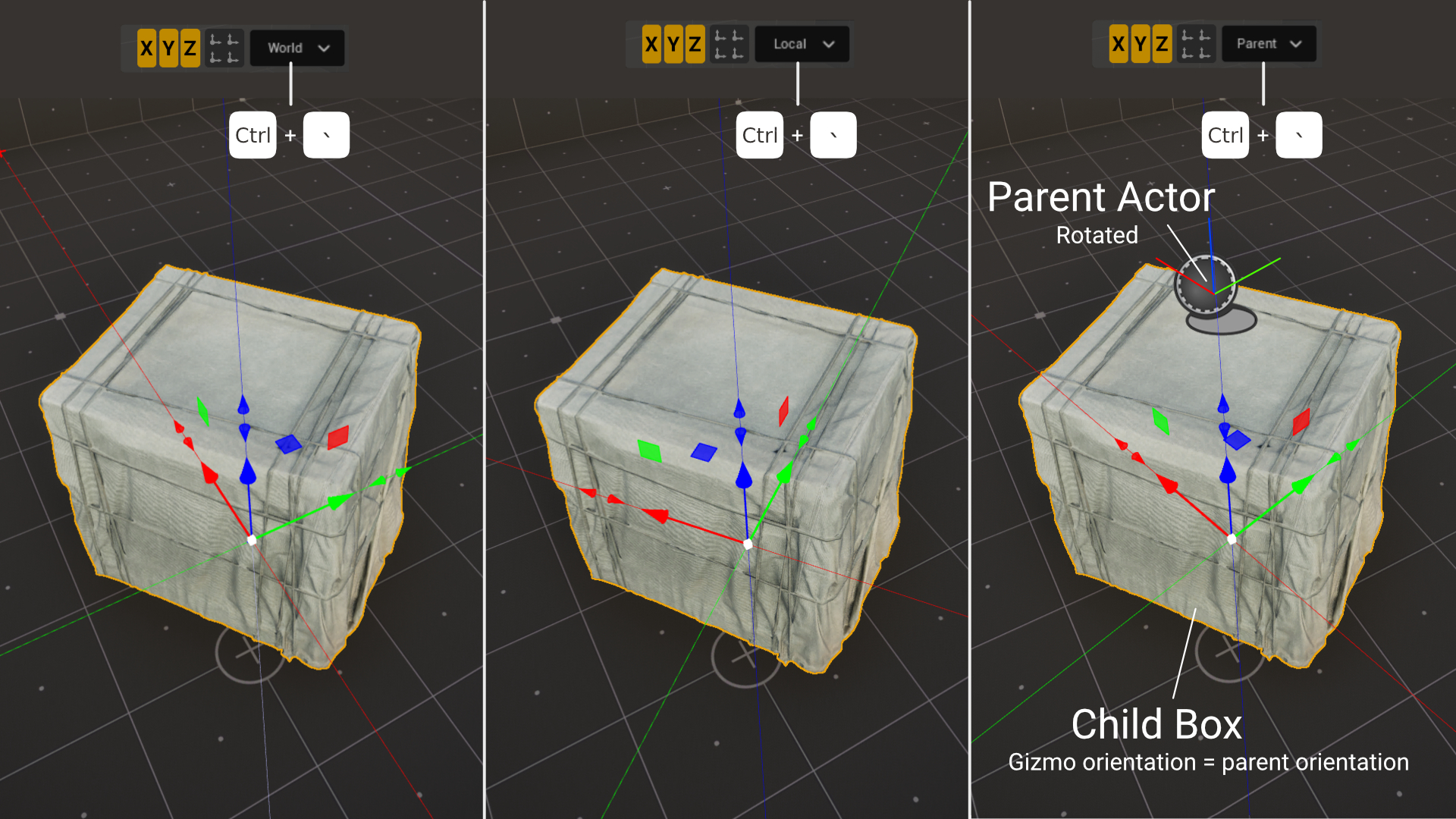
- The hotkey Ctrl+` — cycles the systems, see Switching quickly.
The choice applies at once: the pivot and the gizmo turn to the new system, in Quick mode too.
World
The gizmo axes follow the world X, Y and Z, however the object is rotated. After every gesture the pivot returns to the world axes. This is the default system.
Local
The gizmo axes follow the object's own axes. For one actor — its own rotation. With several actors selected, the axes come from the last selected one.
Parent
The gizmo axes follow the axes of the "container" — whatever the object lives in:
- for an actor attached to another actor — the parent's axes;
- for a spline point — the spline's axes.
As in World, after a gesture the pivot returns to the container's axes.
An actor without a parent has no container, so Parent works as Local — along the actor's own axes. The dropdown then shows Parent*, and its tooltip explains: "The selected object has no parent - Local is used". With several actors selected, the last selected one decides: if it has a parent, the parent's axes are used; if not, its own. Select an actor that has a parent, and Parent takes the parent's axes again — no need to switch the system.
Saved
The gizmo axes follow the axes of the pivot saved on the actor (see Saving the pivot on an actor). With several actors selected, the axes come from the last selected one. As in Local, the axes travel with the actor.
The Save Pivot and Load Saved Pivot buttons turn Saved on by themselves — for Quick and every gizmo at once, together with Saved in the P dropdown: the pivot goes to the saved place with the saved rotation. Clear Saved Pivot brings back Local.
An actor without a saved pivot makes Saved work as Local — along the actor's own axes. The dropdown then shows Saved*, and its tooltip explains: "The selected object has no saved pivot - Local is used". Select an actor that has a saved pivot, and Saved takes its axes again — no need to switch the system.
Custom
Custom is the axes you set yourself by turning the pivot. SuperPlacer switches to Custom automatically when you take a rotation for the pivot:
- you turn the pivot with the Rotate gizmo in Edit Pivot;
- you take a rotation with the eyedropper;
- you type a rotation in the Touch&Type window in Edit Pivot.
While the selection stays the same, the taken rotation stays too: leaving Edit Pivot or clicking anchors does not reset it.
You can also pick Custom by hand in the dropdown — the axes keep the rotation the pivot has right now.
One Custom for every gizmo
The rotation belongs to the pivot, not to one gizmo, so Custom is shared: however you turn it on — automatically or in the dropdown — Quick, Translate, Rotate and Scale all switch to Custom at once. Say you took the rotation of another spline point with the eyedropper in Edit Pivot and pressed W: Translate moves the points along the same axes.
Each gizmo still remembers the system it had before Custom:
- pick another system in any gizmo — in the dropdown or with Ctrl+`: that gizmo gets it, and the others return to their previous systems;
- if Custom was turned on automatically, selecting other actors also returns each gizmo to its previous system. A Custom picked by hand stays on a new selection.
One exception is scaling a single actor: its Scale gizmo works in the object's own axes even with Custom on. The dropdown then shows Custom*, and its tooltip explains: "A single object scales in Local - Custom stays for Quick, Move and Rotate". The Custom rotation is not lost: switch to another gizmo or select several actors, and the Custom axes come back.
Spline support
World, Local, Parent and Custom work when you edit spline points, the eyedropper included. That makes it easy to place points along the curve's own axes or relative to a reference point:
- World — the world axes, as for actors.
- Local — axes derived from the curve itself: X runs along the tangent at the point, and where there is no tangent (a Constant point or a zero-length tangent) — towards the next point. A point on a straight run is easy to slide along the line, a point on a bend — along the tangent or across it. With several points the axes come from the last selected one; after a gesture they follow the new shape of the curve.
- Parent — the spline's own axes: points move in its coordinates, however the actor is rotated.
- Custom — axes taken from another point. Handy for editing orthogonally to a reference point: for example, moving a point strictly across the tangent of its neighbour.
Saved is not available on points: only an actor can have a saved pivot. If Saved was picked before, the points move along the Local axes, and the dropdown shows Saved*.
To take the axes of a reference point:
- Select the points you are going to move.
- Press C for Edit Pivot and E for Rotate.
- Click the reference point with the eyedropper (I). The point under the eyedropper is highlighted, the pivot takes its rotation, and the system switches to Custom.
- Press C to leave Edit Pivot, then W: Translate moves the points along the reference point's axes. Custom is shared by every gizmo (see One Custom for every gizmo), so the axes stay in Rotate and in Quick as well.
Outside Edit Pivot the eyedropper passes the donor's value itself to the selected points — its position, rotation or tangent shape, see The eyedropper on spline points.
One coordinate system per gizmo
Quick mode and each gizmo — Translate, Rotate, Scale — remember their own system. For example, put Translate (W) in World, switch to Rotate (E) and pick Local: back in Translate the axes are world ones again. When you switch gizmos, the pivot turns to the new gizmo's system at once.
The dropdown and Ctrl+` change the system of the mode you are working in only. The exception is Custom, which is one for every gizmo (see One Custom for every gizmo).
Right after the start every gizmo works in World. The choice lives as long as the editor is open: switching to another editor mode (Landscape, for example) and back does not reset it. The choice is not kept between editor sessions.
Scale
- A single actor. Every time you select a single actor, the Scale gizmo switches to Local — so the scale runs along the object's own axes. If Custom is on, it stays, and Scale works in the object's axes and shows Custom* (see One Custom for every gizmo). If you like, switch it to World or Parent: the object then scales along those axes, and a rotated object approximately.
- Transform Each. The scale always runs in each object's own axes, so for the Scale gizmo the dropdown shows Local and is disabled (tooltip: "Transform Each: Scale is always applied in Local coordinates").
Ctrl+` Switching quickly
Ctrl+` cycles the system of the current mode: World → Local → World. From Custom and Saved the key goes to World, and after Custom the other gizmos return to their systems.
To include Parent in the cycle, turn on Include Parent in Ctrl+` in the Coordinates group of the SuperPlacer Settings window. It is off by default; Parent is always available in the dropdown and in the gizmo menu.
Coordinate systems and Touch&Type
The Touch&Type window shows the system in the parameter name, for example Position (Local):
- in World and Custom the Position fields show the pivot's world coordinates;
- in Local, Parent and Saved the fields start at zero: you type an offset along the pivot's axes from where it is now.