Resize Rect lights, their barn doors, Spot cones, the attenuation radius and decals right in the viewport — with handles on the selected actor.
Usually these values are edited as numbers in the Details panel. SuperPlacer draws handles on the selected light or decal: drag a handle and the value changes before your eyes. The handles work in Transform mode together with the gizmo: the gizmo moves the actor, the handles change its shape.
When the handles show
The handles appear when at least one Rect Light, Spot Light or decal actor is selected in Transform mode. Point Light and Directional Light have no handles.
The handles hide:
- in Edit Pivot — there the viewport belongs to the pivot anchors;
- during a gesture in Quick mode — so the closing click lands in the level, not on a handle;
- in the viewport's game view (G), like the rest of the editor's helper graphics.
The handles keep a constant size on screen and highlight under the cursor. When a handle ends up under the gizmo, it moves a little aside so you can grab it.
When several lights are selected, each gets its handles, but a drag changes only the light whose handle you grabbed.
Rect light size
A Rect Light is a rectangular source. Three kinds of handles change its width and height:
- green dots left and right — the width (Source Width);
- blue dots at the top and bottom — the height (Source Height);
- red balls in the corners — width and height at once.
By default the change is one-sided: the edge you drag follows the cursor and the opposite one stays where it is. To make that happen, SuperPlacer moves the actor itself by half the change.
To stretch the light symmetrically from the centre, hold Shift while dragging. Then both edges move and the actor stays in place.
When the light is thin and long, its handles lie on top of each other on screen. Bring the cursor to them — they fan out, and a thin line runs from each one to the corner or edge it moves. Move the cursor away — the handles come back.
After a resize the pivot is rebuilt for the new size, and the gizmo comes back on the resized light.
Rect light barn doors
Barn doors limit the light at the edges. Their handles are orange and sit on the right edge of the light along the door's line:
- the segment at the door's tip — its length (Barn Door Length);
- the «T» a little further along the same line — the angle (Barn Door Angle), from 0 to 90°.
The angle follows the cursor turning around the edge of the light: lead the «T» where the door should point.
Spot light cones
A Spot Light has two cones: the inner one is full brightness, the outer one is where the light ends. The handles sit on the circle at the end of the cone:
- four outlined circles — the outer cone (Outer Cone Angle);
- four filled circles, turned 45° from the outer ones — the inner cone (Inner Cone Angle).
Drag a circle outwards to widen the cone and inwards to narrow it. The outer cone can't become smaller than the inner one, and the inner one can't become bigger than the outer: SuperPlacer keeps a small gap between them.
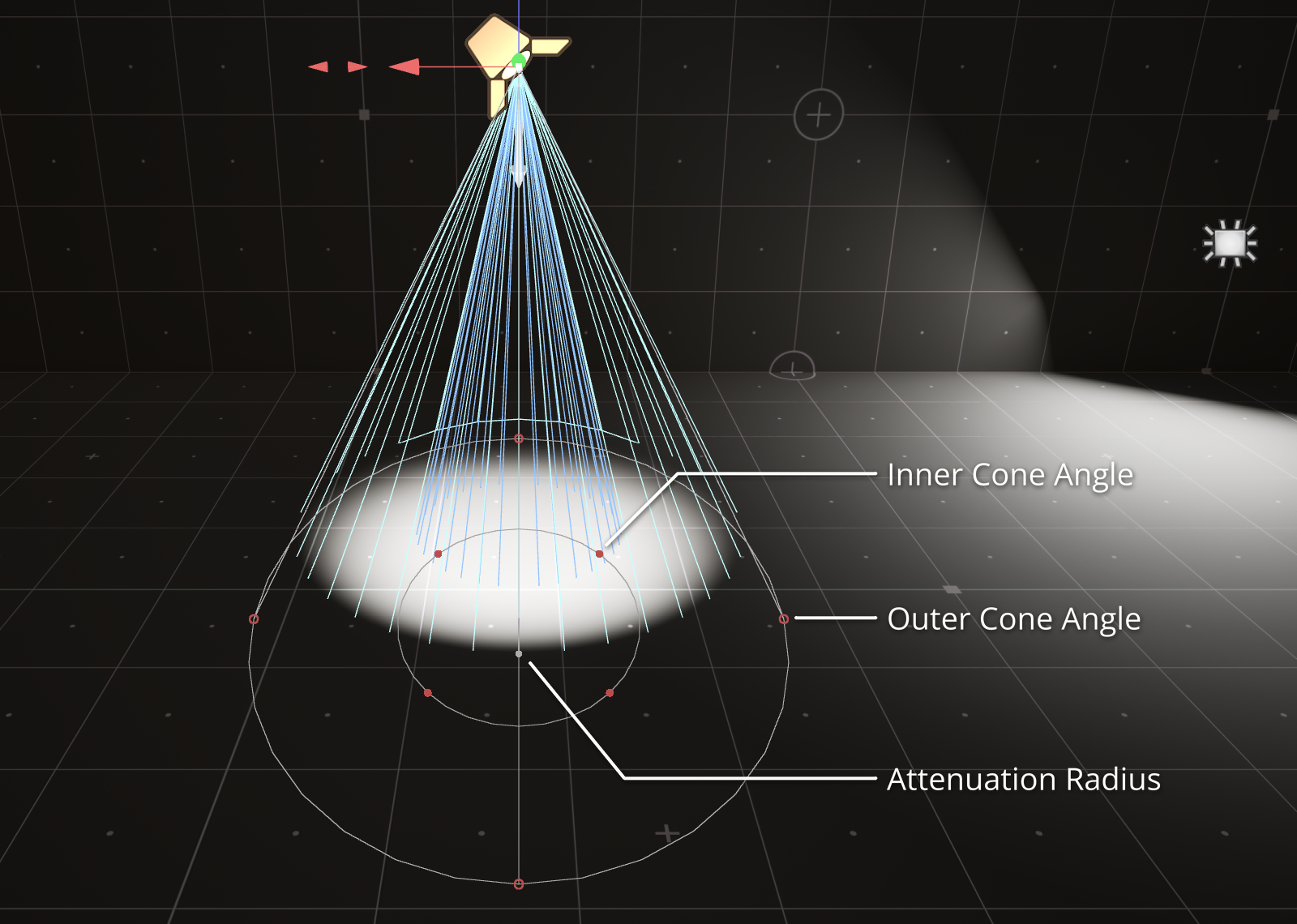
Attenuation radius
Rect and Spot lights have a white lollipop handle: the stick starts at the attenuation distance along the light axis, and the circle at its end is what you drag. Drag the circle along the axis to change the Attenuation Radius. The radius doesn't go below 1.
On a Spot light the end of the cone is the attenuation radius, so the circle with the cone handles moves along with it.
The attenuation handle is hard to drag when you look straight along the light beam: the axis goes into the screen. Turn the camera a little to the side.
Decal size
A grey box of the projection is drawn around the selected decal. The handles:
- red pyramids in front and behind — the depth of the projection;
- green pyramids — the width;
- blue pyramids — the height;
- red balls in the four corners of the projection plane — width and height at once.
Like with a Rect Light, by default the opposite face stays in place and the actor moves. With Shift the decal grows symmetrically from the centre. The size takes the actor's scale into account: the handles sit exactly on the visible box. No side gets smaller than 1.
After any resize the pivot is rebuilt for the new decal.
Exact values
The handles work with Touch&Type:
- Grab a handle or double-click it.
- Type a number — a window with this handle's value opens.
- Press Enter.
The window shows the same number as the Details panel: the width, the height, the barn door length and angle, the cone angle, the radius. Corner handles give two fields — width and height. A typed value resizes from the centre, and the actor doesn't move.
Undo
- The right mouse button during a drag cancels it: the values and the actor's position come back, no history step is created.
- Every drag and every typed value is one history step: Ctrl+Z undoes it whole.