The SuperPlacer gizmo, snapping and Touch&Type inside the Modeling Mode tools — plus Push/Pull and Inset right from the gizmo.
Modeling Mode is the Unreal Engine toolset for working with meshes: creating primitives, editing polygroups, transforming meshes, UVs. Every tool has its own stock gizmo. SuperPlacer replaces it with its own: the same Translate, Rotate and Scale as in the level, with the right mouse button to cancel, snapping, Touch&Type, Edit Pivot and the eyedropper. Your hands do the same things with actors and with the faces of a mesh.
Turning it on
The integration turns on by itself when three engine plugins are enabled in the project:
- Open Edit → Plugins.
- Enable Modeling Tools Editor Mode, Mesh Modeling Toolset and Experimental Mesh Modeling Toolset.
- Restart the editor.
If at least one of them is off, SuperPlacer works in full — just without the Modeling Mode integration. More in Installation.
The SuperPlacer settings have an Enable on Modeling Mode checkbox in the Editor Modes Coexistence section (on by default): it keeps SuperPlacer on top of Modeling Mode. If the Modeling plugins are off, the checkbox is grey and tells you what to do.
The gizmo in the modeling tools
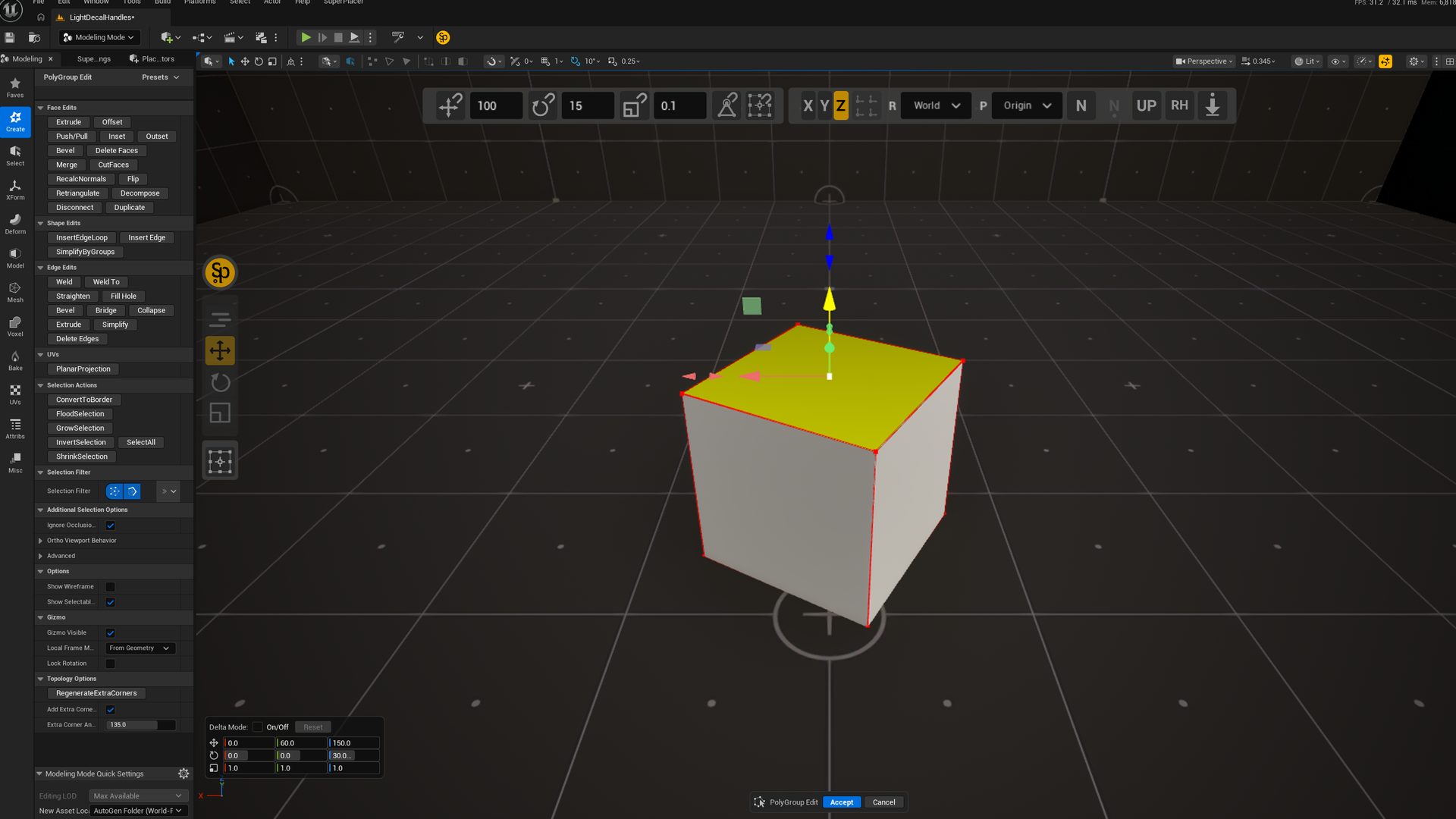
The tools open as usual — from the Modeling Mode panel, not from the SuperPlacer interface. The SuperPlacer gizmo appears wherever a Modeling tool creates its own: in PolyGroup Edit and Triangle Edit, Transform, Edit Pivot, Lattice, Mirror, Plane Cut and others, and on the element selection of Modeling Mode itself.
What works the same as in the level:
- W, E, R switch Translate, Rotate, Scale. One gizmo shows at a time.
- The right mouse button during a drag cancels the gesture.
- Digits after a gesture open the Touch&Type window. Fields the tool doesn't let you change are grey. After a drag of the Translate gizmo the window shows Position — the gizmo's world coordinates, and you type into the field of the axis you dragged.
- SuperPlacer snapping works instead of the editor's grid. Vertex snapping works too.
- Ctrl+` switches the coordinate system. The chosen system is shared by all Modeling tools and is kept between them.
- C — Edit Pivot: the anchors are built from the tool's selection, and the pivot can go to a vertex of the mesh being edited. Shift+C switches the box between the selection's axes and the world axes.
- I — the eyedropper: takes a position, rotation or scale from another object, whole.
- The Advanced gizmo view: teleport cones and Look At.
Transform Each doesn't work inside the Modeling tools: its Stripe UI button is grey, and Shift+E turns nothing on. When you close the tool, Transform Each comes back the way you left it.
Some tools decide on their own which axes to work in: then the Stripe UI shows the coordinate system grey, marked «(tool)». Scale in Modeling always goes along the local axes.
Transform UVs is the exception: it keeps the tool's standard gizmo, SuperPlacer doesn't replace it. While the tool is open, SuperPlacer stays out of it: the Stripe UI and the Column UI are hidden, W, E, R switch the modes of the standard gizmo, and digits, I and Ctrl+` work as in Modeling without SuperPlacer. When you close the tool, the SuperPlacer gizmo comes back to the other Modeling tools.
The Modeling numeric panel and the tool's Details keep working: values typed there move the object, and the SuperPlacer gizmo follows it.
Creating primitives
When you open a primitive creation tool (Box, Sphere, Cylinder and others), SuperPlacer puts the primitive in the scene right away and carries it along the surface after the cursor, as in Quick mode. The surface hit (Ray Hit, F8) is always on for it.
- Move the cursor — the primitive slides over the scene's surfaces.
- Click to fix it. The gizmo switches to Translate, the tool stays open.
- Move, rotate, scale with the gizmo. Q carries the primitive after the cursor again.
- Press Enter to create the mesh, or Esc to cancel.
While it's being carried, Esc brings the primitive back to where it was before, and the tool stays open. Ctrl+Z inside the tool steps through the primitive's poses.
Mesh editors
In PolyGroup Edit, Triangle Edit and similar tools the SuperPlacer gizmo sits on the selected elements. No selection — no gizmo. You select with a click, as usual in Modeling: Shift adds, Ctrl removes.
- Dragging a selected element moves it without the gizmo (direct manipulation).
- Quick mode starts from the Quick dot on the selection.
- Every gesture is one undo step of the tool: Ctrl+Z works as usual in Modeling.
You leave the tool with Enter (Accept), Esc (Cancel) or the Modeling panel buttons.
Push/Pull and Inset from the gizmo
In PolyGroup Edit and Triangle Edit, select faces, then:
| Gesture | What happens |
|---|---|
| Shift + dragging an axis or a plane of the Translate gizmo | Push/Pull — the faces are pushed out or pulled in |
| Shift + dragging an axis or a plane of the Scale gizmo | towards the pivot — Inset, away from the pivot — Outset |
| the same with Ctrl+Shift | the function stays open after you release |
With Shift the function is applied when you release the mouse. With Ctrl+Shift it stays open: the next gizmo drags keep changing the amount, Touch&Type digits set it, the Modeling panel field is live. Enter applies, Esc or a short right click cancels.
The amount follows the mouse one to one and respects SuperPlacer translate snapping. The right mouse button during a drag cancels the gesture — the mesh stays as it was.
Without Shift the gizmo works as usual. A drag next to the gizmo is the stock Modeling selection rectangle. The Rotate gizmo and direct manipulation don't start these functions.
Functions opened with the panel buttons
If you open Inset, Extrude and similar functions with a Modeling panel button, they work the stock way — the cursor drives the amount. SuperPlacer adds to them:
- digits — the Touch&Type window with the amount field; while it's open the mouse doesn't change the amount. Enter applies the function with the typed value;
- a short right click — cancels the function; holding the right button still turns the camera;
- SuperPlacer translate snapping for the Extrude height: snapping on moves the height in steps, snapping off gives back the Modeling grid.
Sleep
In sleep (Shift+CapsLock) SuperPlacer sleeps in Modeling too: the SuperPlacer Stripe UI is hidden, the SuperPlacer keys — W, E, R, I, C, Ctrl+` — don't work, and tools opened in sleep get the stock Modeling gizmo. So does the element selection gizmo of Modeling Mode. A tool opened in sleep keeps the stock gizmo until it closes, even if you wake SuperPlacer up.
If you put SuperPlacer to sleep in the middle of working with a tool, the open gesture is cancelled, and that tool keeps the SuperPlacer gizmo until it closes. A hint Re-open the Modeling tool to get its standard gizmo appears above the sleep message at the bottom of the viewport: to get the stock gizmo, close the tool and open it again. When you wake SuperPlacer up, it connects again to the tool that was open before sleep.