Type exact values right after a gesture, or double-click a gizmo element and enter a number — with operators, expressions and copies.
Touch&Type means "touch and type". Instead of hunting for a field in the Details panel, you touch the gizmo and type a number right in the viewport. The window knows which element you touched and opens on the field you need.
It is another best friend of yours: you will use it almost as often as the Virtual Pivot. The pivot decides what the selection moves around, Touch&Type decides exactly how far.
Typing after a gesture
- Select actors and turn on a gizmo: Translate (W), Rotate (E) or Scale (R).
- Drag the gizmo by the element you need — or just click it.
- Without touching the mouse, type a number. The Touch&Type window opens at the cursor, with the first digit already in the field.
- Press Enter to apply, or Esc to cancel.
The window opens on the digits of the main row and of the numeric keypad, the minus and equals keys of the main row (equals works as plus), the plus, minus, multiply and divide keys of the keypad, and the period, the comma and the keypad's decimal key — these put "0." in the field.
The window opens when the cursor is over the viewport and you are not typing in a text field of the editor.
Double-click to type
Double-click a gizmo element — an arrow, a ring, a plane, the center cube — or a handle, such as a light or decal handle. The window opens on that element's field. The current value is selected, so the first digit you type replaces it.
A double click on an anchor in Edit Pivot doesn't open the window — it locks the anchor. See Locked and saved pivot.
What the window shows
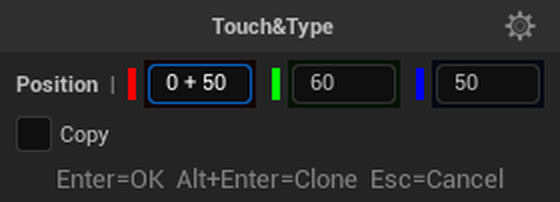
The window has four rows:
- The title — "Touch&Type" and a gear with settings. Drag the window by its title to move it.
- The field row — the parameter name, a bar and the fields. A colored mark next to a field shows the axis: red for X, green for Y, blue for Z. The field of the axis you touched gets the focus.
- Copy — the copy checkbox, see Copies.
- The hint — which keys do what.
The fields depend on the gizmo:
| Gizmo | Parameter | Fields |
|---|---|---|
| Translate | Position | X, Y, Z — the pivot's position |
| Rotate | Rotation | X (Roll), Y (Pitch), Z (Yaw) — the pivot's rotation |
| Scale | Scale | Uniform — one multiplier for all axes; below it X, Y, Z — the scale per axis |
If the coordinate system is not World, the parameter name says so, for example Position (Local). In Local, Parent and Saved the Position fields start at zero: you type an offset along the pivot's axes from where it is now. In World and Custom they are world coordinates. See Coordinate Systems.
The Uniform field starts at 1. Type 2, and X, Y and Z double. When you move from Uniform to another field, Uniform goes back to 1, and the new X, Y, Z become the base for the next multiplier. The field of one axis changes only that axis.
Values and expressions
- A number replaces the field's value: 150 means 150.
- An operator as the first key —
+,-,*or/— puts in the current value and the operator, for example "6000 + ". Type the second number: "6000 + 50" gives 6050. This is the easiest way to add, subtract, multiply or divide. - Expressions: you can type any expression with
+,-,*,/and parentheses —1500 / 2,(100 + 50) * 2. Use a period or a comma for the decimal part. - A negative number:
-as the first key means "subtract". To enter a negative value, type it once the field already has text — for example, clear the value that was put in and type-90, or type the expression0 - 90.
The value applies as soon as the expression in the field is complete: the actors move while you type. While the expression is not complete — a parenthesis is open, it ends with an operator or a period — the actors stay where they were. As when you drag the gizmo, the viewport shows a white measuring line from the starting position with a distance plate, and for a rotation, an angle arc at the Rotate gizmo.
Typed numbers apply exactly: snapping doesn't round them.
Window keys
| Key | What it does |
|---|---|
| Tab / Shift+Tab | next / previous field |
| Enter | apply and close |
| Esc | cancel: everything goes back as it was |
| a click outside the window | the same as Esc |
| Alt+Enter | apply to a copy, the original stays in place, see Copies |
Everything you do in one window is one undo step. In the undo history (Edit → Undo History) it is called "Touch&Type: …" with the parameter name, for example "Touch&Type: Position".
Copies
The window can leave copies instead of moving the original:
- Hold Alt — a copy appears in the viewport in the new position, and the original goes back to its place. Alt+Enter creates that copy. After the window is closed, every next Alt+Enter repeats the same action — one more copy.
- The Copy checkbox and the Count field (1 to 100) — make several copies at once, each one shifted by the same amount. The hint at the bottom changes to "Enter=Copy Esc=Cancel", and the copies are shown in advance.
With a moved pivot the copies stand in a circle instead of a row: a rotation turns around the pivot.
Everything else about copies is on the Copies page.
Touch&Type and Transform Each
With Transform Each on (Shift+E), the typed value goes to every actor in its own place: a move — along its own axes in Local, a scale and a rotation — around its own pivot. The window shows the values of the last selected actor — the gizmo stands on it.
Touch&Type in Edit Pivot
In Edit Pivot the window moves only the pivot — the actors stay in place. A typed position switches the pivot position source to Custom, just as dragging the gizmo does. A typed rotation switches the coordinate system to Custom, so that the pivot's rotation isn't reset.
This is a handy way to put the pivot exactly on an edge or a corner, and then rotate or scale the actor from it.
Spline points
Touch&Type works with selected spline points too: the window moves, rotates and scales the points the
same way as actors. In Local the point's X axis runs along the curve's tangent — a move along X takes the point along
the curve's continuation. If the X arrow points into the curve, the step is negative: - as the first key and a number.
Alt+Enter leaves a copy of the point in the new place, and repeated Alt+Enter add more points with the same step.
Distance in Quick
In the Quick working phase the object follows the cursor. Type a number, and the Distance window opens: the object stands that far from where the gesture began, in the direction you led it with the cursor.
- Start Quick and lead the object with the cursor in the direction you need.
- Type the distance, for example
300. The object stands 300 cm from where it started right away; the viewport shows a measuring line from the starting point. - Press Enter — the object stays there, as after a click.
While the window is open, the mouse doesn't move the object — the direction is fixed when you type the first digit. Esc brings the object back to where the cursor held it, and Quick goes on. A negative number sends the object the other way.
The direction follows the axes: with the X axis on, the object stands on the X axis. If the object hasn't moved from its place yet, the direction runs from the starting point to the cursor.
Handles
Touch&Type works with handles too — the markers you drag to change one parameter. Grab a handle or double-click it and type a number: the window opens on that handle's value.
- Light and decal handles — sizes, angles and radius: the same numbers as in the Details panel.
- The Distribute box handles — the ±X handles set Width (the width of the box), the ±Y handles set Depth (its depth). Hold Ctrl as you press the handle, and the field is Gap X or Gap Y — the gap along the handle's axis. The layout changes as you type, Enter keeps it, Esc puts it back as it was.
Settings
The SuperPlacer Settings window has a Touch&Type section with two checkboxes, both on by default:
- Open on Double Click — a double click on a gizmo element or a handle opens the window. Turn it off if you need the double click for something else.
- Open on Number Keys — digits and operators open the window. Turn it off if you have your own hotkeys on the digits: those keys then go to the editor.
The same checkboxes are in the gear menu in the window's title (the Open this window section: On Double Click and On Number Keys). They are the same settings: change them in one place, and the other follows.